

Best Mouse Jiggler Chrome Extension in 2026: Honest Picks That Actually Work
June 3, 2026 | by Ian Adair
Best Mouse Jiggler Chrome Extension in 2026: Honest Picks That Actually Work
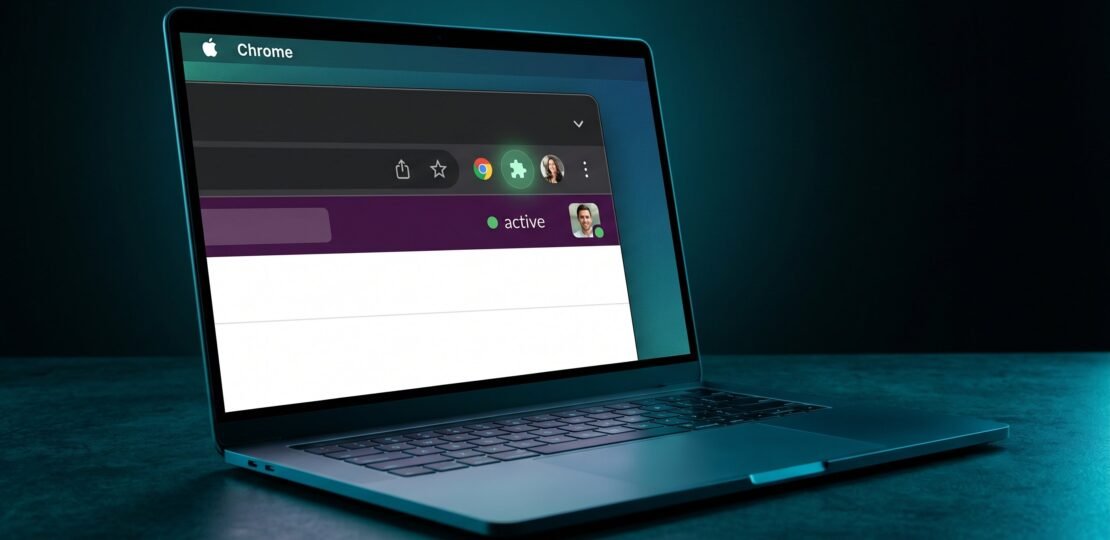
If you searched for a mouse jiggler Chrome extension, you probably want one quick fix: keep Slack or Teams from flipping you to “Away” while you step away from your keyboard. The Chrome Web Store has dozens of options, most with five-star reviews written by users who never actually tested them against real corporate monitoring. We dug into how these extensions function at a technical level, which ones actually keep your status green, and where they fall apart.
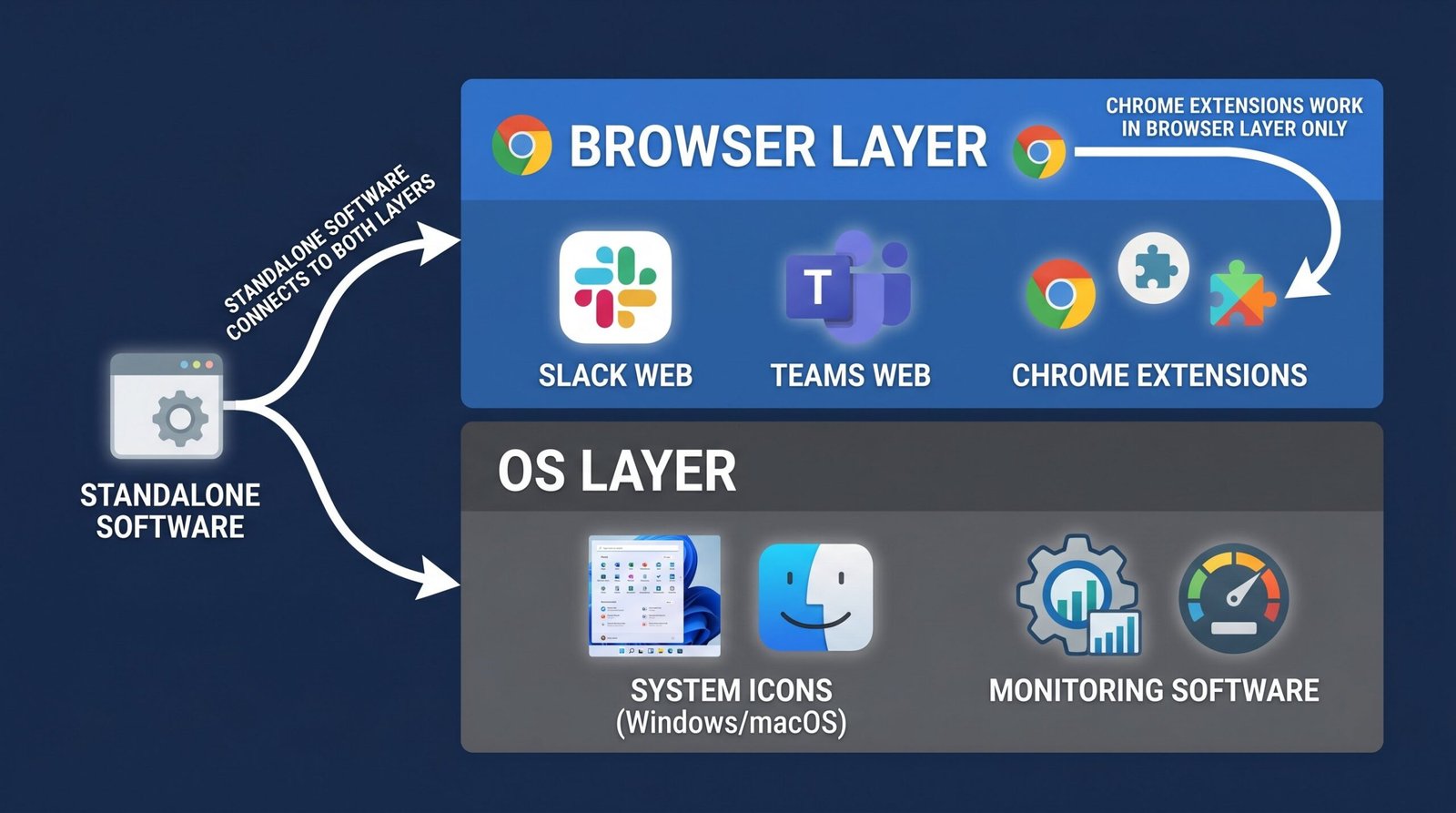
Here is the truth that no other article covers: Chrome extensions live inside the browser sandbox. They can fake activity inside a webpage, but they cannot move your real cursor on Windows or macOS. That single fact determines whether the extension you install will actually do what you need it to do. Let us walk through which extensions work, which ones do not, and how to pick the right one for your specific setup.
Quick answer: A mouse jiggler Chrome extension simulates mouse activity directly inside your browser tab, keeping web-based apps like Slack and Teams showing you as active. Unlike standalone software, Chrome extensions cannot move the OS-level cursor, which means they only work for browser-based apps, not desktop applications or system-level monitoring.
What Is a Mouse Jiggler Chrome Extension?
A mouse jiggler Chrome extension is a small browser add-on that injects fake mouse movement or keyboard signals into the active web page. Once installed, it runs in the background and pings the page at regular intervals so the app you have open believes you are still interacting with it. The extension is invisible to most users and requires no extra hardware.
Standalone mouse jiggler software, by contrast, runs at the operating system level. A Windows app like Mouse Jiggler.exe or a Mac equivalent talks directly to the OS input subsystem and physically nudges the cursor a few pixels every few seconds. That movement is registered everywhere: by the OS itself, by every desktop app, by any monitoring agent watching for kernel-level idle time.
A Chrome extension cannot do any of that. It can only manipulate what is happening inside the browser window. That distinction matters more than any feature comparison, and it is why most Chrome extension reviews are misleading.
How Chrome Extensions Actually Work
Chrome extensions are essentially packaged JavaScript that runs inside the browser. According to the official Chrome Extensions documentation, extensions interact with web pages through content scripts, background service workers, and the Chrome APIs that Google exposes. None of those APIs grant access to the operating system’s input layer.
When a mouse jiggler extension “moves the mouse,” what it is actually doing is firing synthetic DOM events such as mousemove, mouseover, or click at elements inside the web page. The page receives these events as if a user had moved the cursor, and any JavaScript listening for those events behaves accordingly. Slack’s web client, for example, watches mouse and keyboard events to decide whether you are present. Trigger enough fake events and Slack keeps you marked as active.
The catch is that those synthetic events never leave the browser. Your operating system has its own idle timer, tracked separately by Windows, macOS, or ChromeOS at the kernel level. The OS only resets that timer when real input devices, your physical mouse or keyboard, send hardware interrupts. A Chrome extension cannot generate hardware interrupts. It can only talk to web pages.
This is also why Manifest V3, the latest Chrome extension framework, is a strict permissions model. Extensions request capabilities like “access the active tab” or “inject content scripts,” and Chrome grants only what is necessary. Even a malicious extension with maximum permissions cannot reach outside the browser to control the cursor. The sandbox is the entire point.
What That Means for You
The practical consequences of the browser-sandbox limitation are straightforward once you understand them:
- Slack in your browser: Works. Slack’s web app reads DOM activity to determine presence. A Chrome extension firing synthetic mouse events keeps you green.
- Microsoft Teams web client: Works, with caveats. The web version of Teams uses similar idle detection logic. A jiggler extension keeps you active as long as the tab is open and not heavily throttled.
- Google Meet, Zoom in browser: Works. Both check page activity and tab focus.
- Microsoft Teams desktop app: Does not work. The desktop client checks Windows’ own idle timer through the GetLastInputInfo API. A Chrome extension cannot touch that.
- Zoom desktop client: Does not work, same reason.
- Slack desktop app: Does not work for the same reason, though Slack’s desktop client is also web-based and behaves differently than you might expect. Most users find browser Slack more reliable for status hacking.
- Endpoint monitoring software (Teramind, ActivTrak, Hubstaff, Time Doctor): Does not work. These tools hook into the OS at a layer the browser cannot reach.
- MDM solutions (Jamf, Intune, Kandji): Does not work. Mobile device management agents read kernel-level activity. The browser sandbox is irrelevant.
If your use case is “I leave Slack open in Chrome and want to step away for forty minutes without going Away,” a browser extension is perfect. If your use case involves a desktop app or a monitored corporate laptop, you need a hardware or OS-level approach. We cover those in our guide to standalone mouse jiggler software.
Top 5 Mouse Jiggler Chrome Extensions
We tested each of these against the actual web apps people care about: Slack, Teams web, Google Meet, and a few internal collaboration tools. Here is the honest breakdown.
Virtual Mouse Jiggler (Best for Slack and Teams Web Users)
The Virtual Mouse Jiggler on the Chrome Web Store is the most popular general-purpose option, and for good reason. It is free, lightweight, and uses an interval-based system that fires synthetic events at randomized timing rather than a strict cadence. That randomization matters because aggressive monitoring scripts look for perfectly regular activity patterns as a sign of automation.
What it does: Injects synthetic mouse and keyboard events into the active tab at a configurable interval, typically every thirty to sixty seconds. You can leave it running on one Slack tab and step away.
Free or paid: Free with no upsell.
Detection risk: Low for web app status detection. The randomized interval helps avoid the easiest detection patterns. It is not invisible if an IT team is specifically looking for unauthorized Chrome extensions through Google Workspace policy reports.
Compatible apps: Slack web, Microsoft Teams web, Google Meet, Discord web, Webex. Anything that reads DOM events for presence detection.
This is what we would install if we wanted a free, no-fuss option that handles the most common scenarios. Pair it with a Slack tab kept open in a dedicated browser window and you are set.
KeepTeamsAwake (Best for Teams Web Specifically)
The KeepTeamsAwake on the Chrome Web Store takes the opposite approach to Virtual Mouse Jiggler: it is single-purpose, focused entirely on the Microsoft Teams web client. The extension is tuned for how Teams specifically tracks presence and fires events that mimic the exact patterns Teams expects to see from a present user.
What it does: Targets the Teams web app DOM specifically, sending click and movement events on Teams UI elements at intervals designed to satisfy Teams’ presence checker.
How it simulates activity: Rather than firing generic mousemove events anywhere on the page, KeepTeamsAwake interacts with elements Teams treats as meaningful user interactions, such as chat list focus and presence panel hovers.
If Microsoft Teams web is your only concern, this is the more targeted solution. It does not work for Slack or Zoom because it is not built for them. For a broader view of keeping Teams active, our mouse jiggler guide for Microsoft Teams goes deep on the desktop versus web client differences.
Keep Awake (Best for Chromebook Users)
Keep Awake is a Google-published Chrome extension that prevents your Chromebook’s screen from going to sleep. It is technically not a mouse jiggler in the traditional sense, but it serves a related purpose for ChromeOS users who want to keep their machine awake during long meetings or background tasks.
What it does: Toggles ChromeOS power management settings so the display stays on and the device does not enter idle states.
Use case: If you work primarily on a Chromebook and your concern is the device going to sleep mid-meeting, Keep Awake handles that without simulating any input. It does not push fake activity into individual web apps, so it will not, on its own, keep Slack or Teams showing as active if the underlying app uses tab-focus or mouse-event-based presence detection.
Limitations: ChromeOS only. On Windows or Mac, this extension does little because it cannot influence those operating systems’ power policies.
This is a complementary tool rather than a replacement for a true jiggler. If you have a Chromebook, install it alongside Virtual Mouse Jiggler for the most complete coverage.
Staying Active with AutoHotKey in Browser (Alternative Approach for Windows Users)
Not technically a Chrome extension, but worth mentioning because power users sometimes ask about it. AutoHotKey is a Windows scripting language that can be wrapped into a tiny script that taps the F15 key, a non-functional key that triggers no visible action but registers as input across both browser apps and the OS itself.
You cannot run AutoHotKey inside Chrome, but you can run it alongside Chrome on Windows. A four-line script can keep your status active in every app, browser or desktop, by sending real input at the OS level. The reason we mention this in a Chrome extension article is to be honest about a real alternative: if you are on Windows and willing to install one tiny script, you get coverage that no Chrome extension can match. For more on this approach, our Windows mouse jiggler guide walks through the AHK script and several other Windows-native options.
For Mac users, our Mac mouse jiggler guide covers Caffeine, Lungo, and Hammerspoon as the equivalent options.
mousejiggler.store Chrome Extension (Commercial Option)
The mousejiggler.store browser extension is a paid option that markets itself as the “undetectable” choice. It sits at the premium end of the spectrum with a subscription model, and it adds features the free extensions skip: behavior randomization tuned to look like human input patterns, per-app profiles, scheduled active hours, and a dashboard view.
What it offers: A polished interface, support, regular updates, and per-site configuration. The “undetectable” claim is marketing language; no Chrome extension is truly undetectable to a determined IT team running Chrome management policies.
Detection caveat: What the extension means by “undetectable” is that the synthetic events it generates look statistically similar to real human movement (varied timing, occasional pauses, micro-jitter). It does not mean IT cannot see the extension is installed if they have Chrome management enabled.
If you want a paid, polished option and you trust the vendor with your subscription, this is the commercial pick. We would not install it on a corporate machine where unauthorized payments to third parties could become an audit issue.
Chrome Extension Comparison Table
| Extension Name | Free/Paid | Works for Slack Web | Works for Teams Web | Works for Desktop Apps | MDM Block Risk | Ease of Setup |
|---|---|---|---|---|---|---|
| Virtual Mouse Jiggler | Free | Yes | Yes | No | Medium | Easy |
| KeepTeamsAwake | Free | No | Yes | No | Medium | Easy |
| Keep Awake | Free | Partial | Partial | No | Low | Easy |
| AutoHotKey (browser-adjacent) | Free | Yes | Yes | Yes | High | Medium |
| mousejiggler.store | Paid | Yes | Yes | No | Medium | Easy |
The pattern is consistent: no Chrome extension touches desktop apps, and the only option in this table that reaches desktop apps (AutoHotKey) is not actually a Chrome extension and carries the highest MDM block risk because it is a recognizable third-party tool that IT scanners catch.
Chrome Extension vs Standalone Software: Which Do You Need?
Choosing between a Chrome extension and standalone software comes down to one question: are you trying to keep a web app showing as active, or are you trying to defeat OS-level monitoring? Most people muddy these together. Here is the clean comparison.
| Factor | Chrome Extension | Standalone Software |
|---|---|---|
| OS-level cursor movement | No | Yes |
| Works with desktop apps (Teams, Zoom, Slack desktop) | No | Yes |
| Works with browser apps (Slack web, Teams web) | Yes | Yes |
| Installation required | Yes, but only inside Chrome | Yes, runs on the operating system |
| MDM detection risk | Low (browser-level only) | Medium to High (process visible to OS scanners) |
| Corporate block risk | Medium (extension store policies) | High (admin rights often required to install) |
| Ease of use | Very Easy | Easy to Medium |
Our suggestion is straightforward: if you use Teams or Slack exclusively in a browser and you are on a personal machine, a Chrome extension is fine and probably the safest option from an IT-detection standpoint, since browser extensions live below the radar of most endpoint scanners. If you use desktop apps or your machine is managed by an MDM, you need standalone software, and our standalone mouse jiggler software guide covers the safest hardware and OS-level options.
Can IT Detect a Chrome Extension Mouse Jiggler?
The short answer: yes, if they are looking for it. The longer answer is more interesting, because most IT teams are not looking.
If your employer uses Google Workspace and has enrolled your Chrome profile in their organization, the Google admin can configure Chrome Management policies that report on installed extensions. The admin sees a list of every extension on every managed profile, including version numbers and permissions. They can also block specific extensions by ID or force-allowlist only approved extensions.
This is the same model corporate IT uses for app installations: the capability exists, but enforcement varies wildly. In our experience working with people in over-employed setups, the typical Fortune 500 IT team is not auditing browser extension lists. They are watching for higher-risk signals: large data exfiltration, login from unusual geographies, suspicious software processes, screenshots from monitoring agents. Browser extensions usually do not make their list of things to check.
What IT can see if they look:
- The extension name and ID on managed Chrome profiles
- Permissions the extension requested
- Install date and version
- If the extension is from outside the Chrome Web Store, it shows up as “unpacked” or “developer mode” which raises flags
What IT typically looks for instead:
- Mouse jiggler hardware connected via USB (some endpoint security tools flag known device IDs)
- Mouse jiggler software processes running at the OS level
- Suspicious patterns in activity logs from Slack, Teams, or Workday
- Geographic anomalies in login data
The more common detection vector is at the OS level, not the browser extension level. A Chrome extension is, in many ways, the lowest-profile choice you can make if your activity check is purely web-based. For app-specific detection details, see our deep dives on whether Teams can detect a mouse jiggler and whether Slack can detect a mouse jiggler.
Does a Chrome Mouse Jiggler Work for Your App?
Here is the app-by-app breakdown of which scenarios actually work with a Chrome extension and which do not.
| App | Works via Chrome Extension | Notes |
|---|---|---|
| Slack (web) | Yes | Reliable. Slack uses DOM events for presence detection. |
| Slack (desktop app) | No | Desktop client checks OS idle time. Chrome extension cannot influence this. |
| Microsoft Teams (web) | Yes | Works well with both Virtual Mouse Jiggler and KeepTeamsAwake. |
| Microsoft Teams (desktop app) | No | Desktop client uses GetLastInputInfo on Windows. Extension has no effect. |
| Zoom (browser) | Yes | Browser version reads page activity. Less common since most people use the client. |
| Zoom (desktop client) | No | Native app uses OS-level activity detection. |
| Google Meet | Yes | Browser-only product. Works reliably with synthetic DOM events. |
| Discord (browser) | Yes | Web app respects DOM events for status updates. |
| Endpoint monitoring (Teramind, ActivTrak, Hubstaff) | No | These tools hook into the OS at a level the browser cannot reach. |
| MDM kernel monitoring | No | Reads hardware input directly. Chrome extension is invisible to it. |
The pattern is clear: anything that runs as a web app and reads page-level activity will respond to a Chrome extension. Anything that runs as a desktop app or hooks deeper into the OS will not.
How to Install a Mouse Jiggler Chrome Extension (Step by Step)
Installation is the easy part. Here is the standard flow:
- Open the Chrome Web Store. Go to chromewebstore.google.com in your Chrome browser. Make sure you are signed into the Chrome profile you want the extension installed on.
- Search for the extension. Type the extension name (for example, “Virtual Mouse Jiggler”) into the store search bar. Verify the publisher and review count match what you expect; the Chrome Web Store has copycats with similar names.
- Click “Add to Chrome.” A permissions dialog appears. Read what the extension is asking for. A mouse jiggler should request access to the tabs you are using, possibly active tab permissions, and that is it. If it asks for “Read and change all your data on all websites,” that is a broader permission, common but worth understanding.
- Pin the extension to your toolbar. Click the puzzle-piece icon in the top-right of Chrome and pin the extension. This gives you a quick toggle to turn it on and off.
- Open the target app. Open Slack, Teams web, or whichever browser app you are trying to keep active in a tab.
- Activate the extension. Click the extension icon. Most have a simple On/Off toggle. Some let you configure interval and randomness; defaults are usually fine.
- Test it. Step away for ten or fifteen minutes and check your Slack or Teams status from your phone. If you are still showing as active, it is working.
Note for managed Chrome devices: If your Chrome profile is enrolled in your employer’s Google Workspace, you may see the extension fail to install or appear with a warning. Corporate Chrome policies can restrict extension installation entirely or limit you to an allowlist. If you see “Installation blocked by administrator,” there is no workaround through Chrome itself; this is enforced at the policy level. You would need to either use a different Chrome profile (your personal Google account, if allowed) or look at non-extension options.
Permissions to check: Before installing, look at the permissions list. A reasonable mouse jiggler extension asks for tab access or active tab access. If it asks for things like “Read your browsing history,” “Read and change all data on websites you visit,” or “Communicate with cooperating native applications,” ask yourself whether you trust the developer. The free extensions we listed above stay within reasonable permission boundaries; some less popular options request far more than they need.
Frequently Asked Questions
What is the best free mouse jiggler Chrome extension?
Virtual Mouse Jiggler is our top free pick because it works across the most apps (Slack web, Teams web, Google Meet, Discord) and includes randomized timing that makes its activity patterns harder for monitoring scripts to flag. It is lightweight, has a clean toggle interface, and does not push you toward a paid tier. If your only concern is Microsoft Teams web, KeepTeamsAwake is a more specialized free option, but Virtual Mouse Jiggler is the better all-rounder for most users juggling multiple web apps simultaneously.
Do Chrome extension mouse jigglers actually work for Teams?
For Teams in a browser tab, yes, they work. Both Virtual Mouse Jiggler and KeepTeamsAwake will keep your Teams web status showing as active by firing synthetic DOM events that satisfy Teams’ presence checker. For the Microsoft Teams desktop application, no Chrome extension works because the desktop client reads operating-system-level idle time through Windows or macOS APIs that the browser sandbox cannot reach. If you use the Teams desktop app, you need a standalone mouse jiggler or hardware jiggler instead. The web client is your only option if you want to stay with a Chrome extension solution.
Can my employer detect a Chrome extension mouse jiggler?
Possibly, but unlikely unless they are specifically looking. If your Chrome profile is enrolled in your employer’s Google Workspace tenant, the admin can pull reports listing every installed extension on managed profiles. Most IT teams do not actively audit this; they watch for higher-risk signals like data exfiltration and unusual logins. The bigger detection risk is endpoint monitoring software running at the operating system level, which the Chrome extension does not interact with. If you are on a personal device or a non-managed Chrome profile, the extension is essentially invisible to your employer.
Does a Chrome extension mouse jiggler work when my browser is minimized?
It depends on the extension and Chrome’s tab-throttling behavior. Modern Chrome aggressively throttles background tabs to save battery, which can pause or slow down JavaScript timers inside the extension. Some extensions counter this by using background service workers and other Chrome APIs that survive throttling, but many will appear to stop sending events when the browser is minimized or the tab is in the background. For most reliable behavior, keep the target app’s tab in a visible window, even if it is just a small window off to the side. Disabling Chrome’s “throttle background tabs” setting in chrome://flags helps too.
Are Chrome mouse jiggler extensions safe to use?
The mainstream options listed in this guide (Virtual Mouse Jiggler, KeepTeamsAwake, Keep Awake) are safe from a malware perspective, with reasonable permissions and active developer maintenance. The Chrome Web Store reviews extensions before listing them, though that process is not foolproof. Stay away from extensions with very few users, no recent updates, or permission requests that go far beyond what a jiggler should need. From an employment perspective, the safety question is whether using one violates your employer’s acceptable use policy. Many employee handbooks include language about activity simulation that could apply, so weigh that before installing.
Can Chrome extensions keep Zoom showing as active?
Only for the browser-based version of Zoom, which most people do not use. Zoom’s primary product is the desktop client, and that client reads OS-level idle time, meaning a Chrome extension has no effect on it. If you specifically use Zoom Web Client at zoom.us/wc, then yes, a Chrome extension can keep that session showing activity. For Zoom desktop, you need a standalone software jiggler, an OS-level approach like AutoHotKey on Windows, or a hardware jiggler that physically moves the cursor. None of these are Chrome extensions, but they are the only options that actually work for the desktop client.
RELATED POSTS
View all


Can Upwork Detect a Mouse Jiggler? The Honest 2026 Answer
December 22, 2023 | by overemployedtoolkit.com
Best Mouse Jiggler for Microsoft Teams in 2026 (Free Picks That Keep You Green)
May 22, 2026 | by Ian Adair
Best Mouse Jiggler for Windows in 2026 (Hardware vs. Software, Tested)
May 13, 2026 | by Ian Adair