

Can Slack Detect a Mouse Jiggler? What Remote Workers Need to Know (2026)
December 22, 2023 | by overemployedtoolkit.com
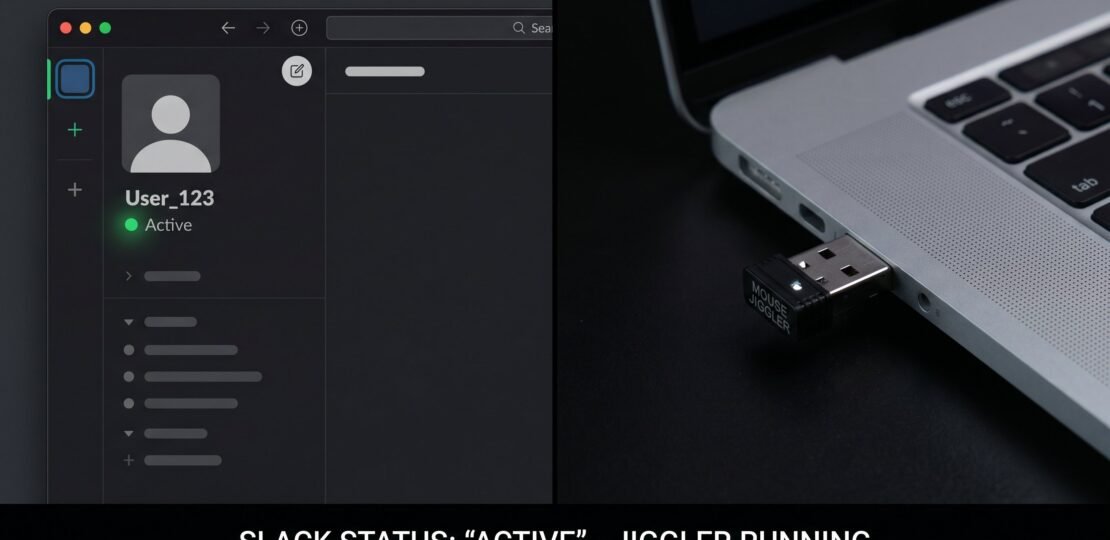
Can Slack Detect a Mouse Jiggler? What Remote Workers Need to Know in 2026
Short answer up front: Slack does not have a feature that detects mouse jigglers, but a jiggler absolutely affects your Slack presence indicator because that indicator reads OS-level input activity. This guide explains how Slack’s Active and Away status actually works, which jiggler types affect it, and what your employer can and cannot see through Slack versus separate monitoring software.
Can Slack detect a mouse jiggler? No. Slack does not detect or flag mouse jiggler usage. However, Slack’s Active and Away status is based on operating system level mouse and keyboard input, so a jiggler will keep your status showing as Active. Slack itself does not report jiggler usage to employers. The real detection risk comes from separate employer-installed monitoring software, not Slack.
How Slack’s Active, Away, and Offline Status Actually Works
Slack’s presence indicator is a coordination tool, not a surveillance tool. It exists so coworkers can see when you might be available, similar to the green dot in iMessage or the presence indicator in Gmail. Here is how it works under the hood:
- Active (green dot): Slack is open on your desktop or mobile device and your OS has registered input activity within roughly the last 10 minutes.
- Away (hollow circle): After approximately 10 minutes of no detected desktop activity, Slack automatically switches your status to Away. On mobile, this happens when you navigate away from the app.
- Offline: If Slack is closed entirely and you have no active connection, your status reads as offline.
According to Slack’s official developer documentation, the message servers automatically detect activity in the Slack client. After 10 minutes with no activity, the user is automatically marked as away. The users.getPresence API endpoint exposes auto_away: true when servers have not seen activity in that window. That is the entire mechanism. There is no machine learning model, no pattern analysis, and no anomaly detection on the back end checking whether your mouse movements look human.
What this means in practice: any tool that generates OS-level mouse or keyboard input, including jigglers, will keep your Slack status Active. Slack reads the same input signal your operating system reads for screen savers and sleep timers.
Does a Mouse Jiggler Keep You Active on Slack?
Yes. Every common jiggler type works for Slack because Slack does not distinguish between input generated by your hand and input generated by a device or program. Here is why each type works:
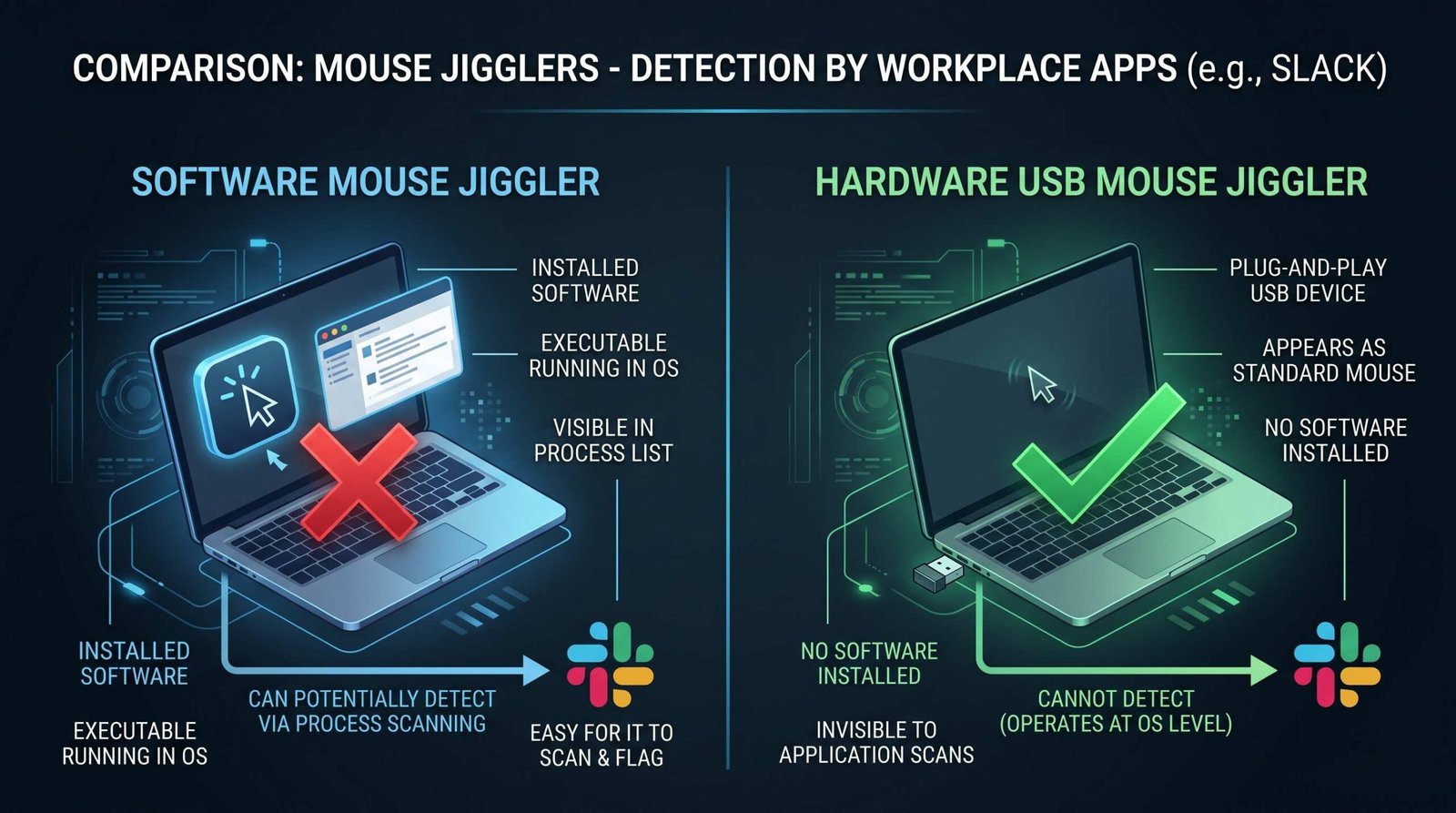
- Hardware jigglers present as a USB Human Interface Device (HID). Windows, macOS, and Linux register them as standard mouse input. Slack sees a movement event and resets the 10 minute idle timer.
- Software jigglers call OS-level mouse APIs (such as
SetCursorPoson Windows orCGEventPoston macOS) to simulate movement. From Slack’s perspective, the source of the event is irrelevant. - “Undetectable” mechanical jigglers physically move a real mouse using a motorized plate. The mouse itself reports the movement to the OS, which is indistinguishable from a person nudging the device.
If you want a deeper technical breakdown of how each style works, our guide on how mouse jigglers work covers the input simulation layer in detail.
Mouse Jiggler Types and Slack Detection Risk
| Jiggler Type | How It Works | Affects Slack Status? | Employer Monitoring Risk | Notes |
|---|---|---|---|---|
| Hardware USB jiggler | Plugs into USB, registers as a mouse | Yes, keeps Active | Medium. MDM tools can log new USB HID devices. | Avoid on managed laptops with strict USB policies. |
| Software jiggler | App that calls mouse APIs | Yes, keeps Active | High. Process name and binary are visible to endpoint agents. | Risky on company devices with Teramind or Hubstaff installed. |
| “Undetectable” mechanical jiggler | Motorized plate physically moves a real mouse | Yes, keeps Active | Low. No software footprint, no USB enumeration. | Best option for OS-monitored devices. |
| Phone-on-trackpad workaround | Vibrating phone over the trackpad | Yes, keeps Active | Very low. Totally external to the machine. | Free and unmonitored, but inconsistent and noisy. |
If you are weighing the trade-offs of mechanical versus software approaches, our breakdown of undetectable mouse jigglers walks through which models genuinely leave no trace on a managed device.
What Slack Does NOT Do
This is the section most articles get wrong. Slack is a communication app with a presence indicator. It is not designed as an employee surveillance product, and the actual feature set is much narrower than people assume. Slack does not:
- Capture screenshots of your desktop
- Track keystrokes or what you type outside Slack
- Report mouse movement data to employers
- Distinguish between human and simulated input
- Send alerts when your status flips from Active to Away
- Log which other applications you have open
- Track which websites you visit
Per Slack’s help center documentation on status and availability, presence is purely a courtesy signal. You can even manually set yourself to Away while still being fully active, and Slack will respect that override.
The Real Risk: Employer Monitoring Software, Not Slack
If you are worried about jiggler detection, you are worrying about the wrong layer. The actual risk lives in employer-installed endpoint software that runs alongside Slack, not in Slack itself. Common tools to be aware of:
- Teramind, ActivTrak, Hubstaff, Time Doctor: These run as user-mode agents or kernel drivers and capture raw input patterns. They can flag jigglers by detecting suspiciously regular motion (the same X-axis nudge every 30 seconds with zero clicks).
- Mobile Device Management (MDM) suites: Tools like Jamf, Intune, and Kandji log USB device enumeration. A new HID device appearing on a managed laptop generates an audit event.
- EDR (Endpoint Detection and Response) products: CrowdStrike, SentinelOne, and Defender for Endpoint catalog running processes. A known jiggler binary will show up in their telemetry.
These are completely separate from Slack. Slack runs in user space and has no visibility into kernel-level input filtering. If your employer has not installed monitoring software, Slack alone gives them nothing useful about your jiggler. For a deeper dive into what employers can actually detect at the OS layer, see our guide on whether employers can detect mouse jigglers and our breakdown of physical jiggler detectability.
Slack Compliance and Enterprise Features in 2026 (What Admins Can See)
Salesforce, which has owned Slack since the $27.7 billion acquisition in 2021, has expanded admin capabilities significantly in 2025 and 2026. Workspace and Enterprise Grid admins now have access to a broader set of logs and controls, but the core privacy boundary has not changed.
What Slack admins CAN see in 2026:
- Message history across channels the admin has Discovery API access to
- File uploads and their metadata
- Login and logout timestamps in the audit log (now retained for 2 years per Slack’s April 30, 2026 retention policy update)
- Presence transitions (Active to Away) in audit log entries on Enterprise+ plans
- Session duration controls and device management (expanded in 2026 across all plans)
- AI exclusion controls for channels marked off-limits to Slackbot’s new agent features
What Slack admins CANNOT see, even on the new Enterprise+ tier:
- Whether you are using a mouse jiggler
- Your screen contents
- Your keystrokes outside Slack
- Which other applications are running on your machine
- Mouse movement patterns or velocity data
One 2026 wrinkle worth knowing: the redesigned Slackbot can now act as a desktop agent that reads context from across your work environment, including connected enterprise apps. This is opt-in and governed by admin permissions, but it is the closest Slack has ever come to crossing the line into desktop awareness. If your org has enabled Slackbot’s desktop agent and you have granted permissions, the agent can see content in apps you have connected to it, though it still does not see raw mouse input.
Practical Advice for OE Workers Using Slack
If you are juggling multiple jobs and using Slack as one of your daily comms tools, here is what we suggest based on what actually works:
- Pair a jiggler with real activity. A status that stays Active for 12 hours straight with zero messages, zero file opens, and zero reactions reads as suspicious to any human teammate. Slack will not flag it, but your manager might. Drop occasional emoji reactions, ack short threads, and keep some real noise on the line.
- Use Slack’s scheduled statuses. Slack lets you set timed statuses like “In a meeting” or “Heads down until 3pm.” A rotating, scheduled status looks more like a real working pattern than a perpetual green dot. We have more on this in our guide to managing overemployed meetings.
- Set Do Not Disturb during real focus blocks. Manually setting yourself to Away or DND is a feature, not a red flag. Plenty of focused workers do it all day.
- Pick the right jiggler for the device. If you are on a managed laptop with EDR or MDM, go mechanical. If you are on a personal device, software is fine. Our review of the best mouse jigglers for Windows compares both routes.
- Cross-reference with Teams. If you also run Microsoft Teams for a second job, the detection layer is similar but the activity timeout is different. See whether Teams can detect a mouse jiggler for the side-by-side.
Frequently Asked Questions
Can my employer see if I use a mouse jiggler in Slack?
No. Slack itself does not surface jiggler usage to admins or employers. Your manager will only see your status as Active or Away. If your employer has installed separate endpoint monitoring software like Teramind or ActivTrak, that software can detect jigglers, but the data does not flow through Slack.
Does Slack track how long you are active?
Slack tracks the transition between Active and Away states in audit logs available to Enterprise Grid admins, with retention now standardized at 2 years as of April 30, 2026. It does not produce a billable hours report or productivity score. Standard workspace admins do not get presence histories.
What happens when you go inactive on Slack?
After approximately 10 minutes with no OS-level input detected, Slack automatically marks you as Away (a hollow gray circle next to your name). Notifications still arrive, messages still queue, and your account remains logged in. There is no penalty, alert, or report generated.
Can Slack detect if I have multiple jobs?
No. Slack has no cross-workspace detection that would identify the same person working two jobs. Each workspace is logically isolated. The only crossover risk is if you sign into two workspaces from the same browser session and accidentally post in the wrong channel, or if both employers use Slack Connect to share a channel where you appear in both.
Does closing Slack affect your active status?
Yes. If you fully quit the Slack desktop app and have no mobile session running, your status will switch to offline (no dot) within a minute or so. If you only close the window but leave the app running in the background, you remain Active as long as your OS reports input activity.
RELATED POSTS
View all


Understanding and Maximizing the Benefits of Independence Head Start
December 22, 2023 | by overemployedtoolkit.com
Understanding Overemployment and The Work Number
December 22, 2023 | by overemployedtoolkit.com