

Can Microsoft Teams Detect a Mouse Jiggler? (The Honest Answer for 2026)
December 22, 2023 | by overemployedtoolkit.com
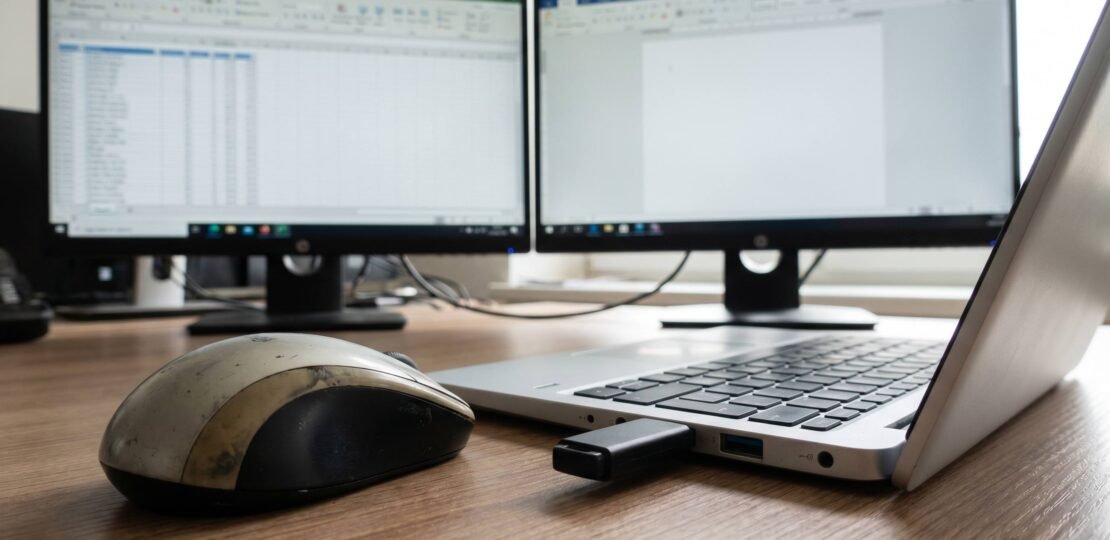
Can Microsoft Teams Detect a Mouse Jiggler? (The Honest Answer for 2026)
Quick Answer: No, Microsoft Teams cannot natively detect a mouse jiggler. Teams sets your status to “Active” whenever it registers mouse movement or keyboard input, but the application has no mechanism to distinguish simulated movement from genuine human activity. The real detection risk comes from IT monitoring software (such as ActivTrak, Teramind, or Monitask) installed separately on company-managed devices, not from Teams itself.
If you have ever stepped away from your desk and watched your Teams icon turn yellow within five minutes, you already understand why mouse jigglers exist. For the overemployed community juggling two or more remote roles, those green dots are currency. The question is whether keeping them green with a jiggler can actually be detected by Microsoft Teams, or whether the conversation about detection has been pointing at the wrong target all along.
This guide breaks down exactly what Teams sees, what it does not see, and where the actual risk lives in 2026. Spoiler: it lives somewhere else entirely.
How Teams Presence Status Actually Works
Microsoft Teams calculates your presence status using a small set of inputs from the operating system. Mouse movement, keyboard input, calendar state, and active call status feed into a presence engine that updates your availability icon. According to Microsoft’s official presence documentation, status changes from Active to Away after roughly five minutes of inactivity on Windows and macOS desktop clients.
Here is the part most people miss. Teams does not have a sophisticated activity classifier. It does not record cursor coordinates, log mouse paths, or analyze the pattern of your inputs. It asks the operating system one essential question: did the user interact with the device in the last few minutes? If the answer is yes, the icon stays green. If the answer is no for five minutes, the icon flips to yellow.
This matters because a mouse jiggler, whether physical or software, generates exactly the kind of input the OS reports back to applications. From Teams’ point of view, a USB jiggler is indistinguishable from your hand. The Teams client running on your machine has no way of asking, “Was that movement intentional?” It just sees movement.
Teams presence also escalates during meetings. When you are in a call, your status switches to “In a meeting” regardless of mouse activity. The presence API exposed to administrators and to applications like Power Automate returns these same coarse states. Nothing in that API surfaces granular activity data such as the number of mouse events per minute or the variance of cursor positions over time.
The takeaway is simple. Teams is a presence reporter, not a monitoring tool. It tells coworkers whether to expect a fast reply. It is not built to catch people who appear active when they are away.
What Can Actually Detect a Mouse Jiggler?
The detection risk for jigglers does not come from Teams. It comes from dedicated employee monitoring software that companies sometimes install on managed devices. These tools are purpose-built to do what Teams does not: analyze the texture of your activity and flag suspicious patterns.
Three of the most common monitoring platforms in 2026 are ActivTrak, Teramind, and Monitask. Each one has expanded its capabilities significantly over the past two years.
- ActivTrak tracks application focus, idle time, and productivity scores. It records which app is in the foreground and for how long. A jiggler keeping the cursor moving while no application receives meaningful input can show up as low productive time, even if presence indicators look fine.
- Teramind goes further with behavior analytics, keystroke logging, and screen recording. It can identify repetitive cursor patterns that look mechanical, such as identical short movements every 60 seconds.
- Monitask published an updated detection methodology in March 2026 covering pattern recognition for software jigglers. Its detection model looks at click distribution, application interaction depth, and the relationship between mouse movement and screen content.
The critical distinction is whether you are running these jigglers on a personal device or a company-managed one. On a personal laptop where you only have Teams and a browser, there is no agent running underneath that can analyze your behavior. On a company device, there can be agents you cannot see in Task Manager that quietly stream activity metrics to a dashboard your manager reviews on Friday afternoons.
If you want to understand how this risk profile changes across platforms, our companion piece on Slack and mouse jiggler detection walks through the same logic for Slack, which behaves similarly to Teams. Our deeper analysis of Upwork’s tracking capabilities covers a stricter scenario where the platform itself does serious activity inspection through screenshots and keystroke counts.
Physical vs Software Jigglers: Does It Make a Difference?
Yes, the difference is meaningful, and it matters most when monitoring software is in play.
Software jigglers are applications you install that move the cursor or simulate keyboard events. They are easy to use and free or cheap. The downside is visibility. Any tool running on your machine can be discovered by IT, either through a process scan or through admin software that maintains an inventory of installed applications. If your company device shows “Mouse Jiggler 3.2.exe” in its software audit, you are explaining yourself in HR by Monday.
Software jigglers also produce more uniform movement patterns because they call the same OS API repeatedly. Modern monitoring tools can pick up on that uniformity.
Physical jigglers are USB devices that either move a mouse mechanically or emulate a HID device that sends movement events. They sit between your hand and the computer, and from the OS perspective they look like any other peripheral.
The advantage is that nothing gets installed. The OS sees a generic mouse or HID device and processes its inputs the same way it would process a real mouse. Modern physical jigglers vary their movement amplitude and timing, which makes their pattern less robotic than older software equivalents.
The disadvantage on company hardware is the USB connection log. Windows Event Viewer records USB device connections by vendor ID and product ID. If IT pulls those logs and the vendor ID belongs to a known jiggler manufacturer, the cover is blown. Our deeper analysis of whether physical jigglers are detectable covers the USB log issue in detail along with the workarounds the OE community has developed.
Mouse Jiggler Detection Risk by Device Type and Scenario
| Scenario | Detection Risk | What Can Detect It | Safe to Use? |
|---|---|---|---|
| Personal device, Teams only | None | Nothing in this setup | Yes |
| Company device, no monitoring software | Low | USB connection logs if audited (physical jiggler), software inventory scan (software jiggler) | Generally yes, with caution |
| Company device, monitoring software installed | High | ActivTrak, Teramind, Monitask pattern analysis | Risky |
| Virtual machine or Citrix session | Medium to high | VDI session monitoring, idle timers at the host level | Use with caution; software jigglers inside VMs often fail |
| BYOD with company MDM enrolled | Medium | MDM telemetry, app inventory, conditional access logs | Risky for software jigglers; physical jigglers usually safer |
| Remote desktop into company environment from personal hardware | Low | Session-level idle timers; jiggler on local device works fine | Yes; one of the safest setups |
| Teams web client only, personal browser | None | Nothing meaningful | Yes |
How to Use a Mouse Jiggler Safely on Teams
Most jiggler incidents involve avoidable mistakes. Here is a practical playbook tuned for people running multiple roles.
Prefer physical jigglers on company hardware. A mechanical mouse mover or HID emulator that does not require installation avoids the entire category of “what software is on this laptop.” If you must use a HID emulator, choose one with randomized movement patterns and a generic vendor ID rather than a branded “jiggler” device.
Run software jigglers on personal devices only. If you are using a personal laptop to access a remote desktop or web-based Teams, software jigglers are essentially free risk. The activity is generated on your personal machine and the corporate environment only sees the resulting session activity.
Vary the timing. A jiggler that moves the cursor exactly every 60 seconds for eight hours is a textbook signature for behavior analytics. Choose a tool that adds randomness, and turn the jiggler off during meetings or working blocks where you are actually present. Our roundup of the best mouse jiggler software includes which tools have randomized timing and which do not.
Avoid the USB log trap on managed laptops. If you plug a known jiggler product into a company laptop with USB device logging, you will create a record. Some OE workers connect physical jigglers to a separate, unmonitored device and use a remote control or a second monitor mouse arrangement to keep both machines active.
Match your jiggler to your actual workflow. A jiggler does not write your code or answer your tickets. It buys you flexibility for short breaks, lunches, and stretches of deep focus on Job B. If you treat it as a tool for time shifting rather than for full-day absence, your overall risk profile drops sharply. For a broader strategy view, see our guide on how to work multiple remote jobs.
Test what your IT actually monitors. Before you build a full OE rhythm around a jiggler, spend a week observing whether your status patterns get flagged. Many companies have monitoring software installed but do not actively review the dashboards, which changes the practical risk significantly.
FAQ
Does Microsoft Teams track mouse movement?
Teams uses operating system level signals to detect whether your device is receiving any input. It does not track individual mouse coordinates or movement paths. The Teams client knows whether the system reports the user as “active” within the last few minutes, which is enough to set presence to Active or Away. There is no granular movement log that Teams stores or surfaces.
Can IT see if I use a mouse jiggler?
IT cannot see a jiggler through Teams. IT can potentially see a jiggler if your company has installed monitoring software like ActivTrak, Teramind, or Monitask on your work device. They can also see physical jigglers if they audit USB device connection logs in Windows Event Viewer, where the vendor and product IDs of any connected device are recorded. On a personal device with no corporate agent installed, IT has effectively no visibility.
What is the best undetectable mouse jiggler for Teams?
For Teams alone, almost any jiggler works because Teams does not run detection logic. The “best” choice depends on the device. On personal hardware, a free software jiggler with randomized timing is fine. On company hardware, a physical HID emulator with a generic vendor ID and varied movement patterns gives the best safety margin. Avoid jigglers that brand themselves prominently in their USB descriptors, and avoid any software that you have to install on a managed laptop.
Can Teams detect a physical USB mouse jiggler?
No. Teams cannot distinguish a USB jiggler from a real mouse because the operating system itself cannot tell them apart at the input layer. Both deliver the same kind of HID events. The detection risk for physical jigglers lives in USB connection logs at the OS level and in behavior pattern analysis by separate monitoring software, neither of which is part of Teams.
Will a mouse jiggler keep me active on Teams?
Yes. A jiggler that produces mouse or keyboard input every few minutes will keep your Teams presence set to Available rather than allowing it to drop to Away. You can confirm this on your own machine in a few minutes by running a jiggler, stepping away, and watching your status icon stay green. Just remember that “Available” on Teams is a low signal: most people who check it know that a green dot does not prove anyone is actually at the keyboard.
RELATED POSTS
View all


Top Healthcare Jobs Secrets in Canada You Need to Know
December 22, 2023 | by overemployedtoolkit.com