

Can Upwork Detect a Mouse Jiggler? The Honest 2026 Answer
December 22, 2023 | by overemployedtoolkit.com
Can Upwork Detect a Mouse Jiggler? The Honest 2026 Answer
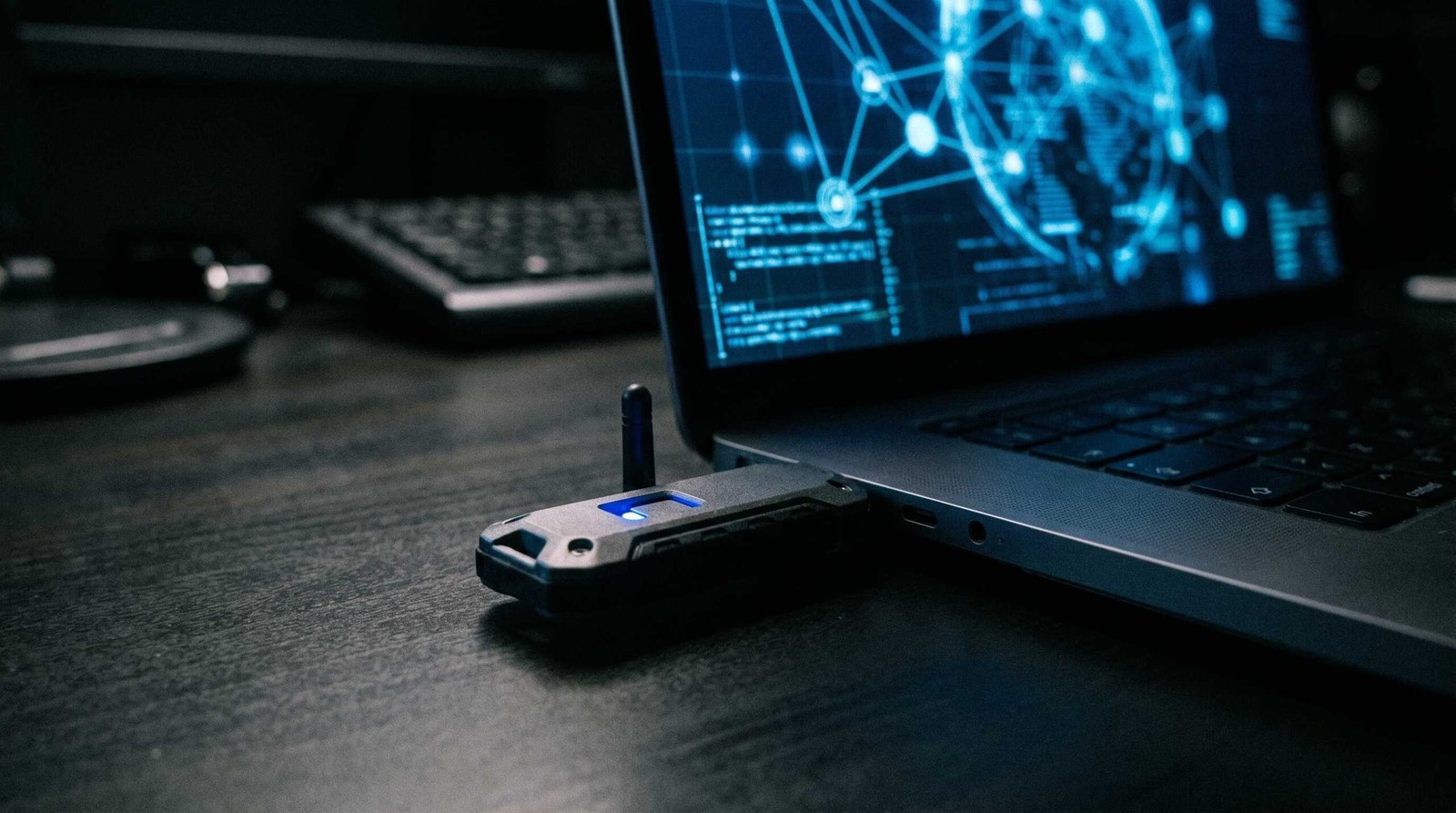
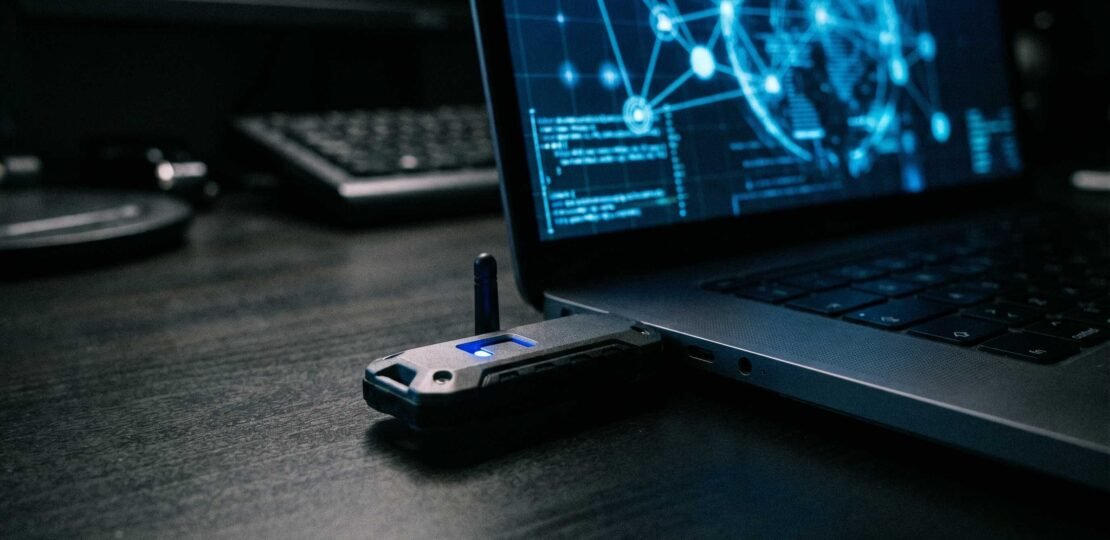
If you freelance through Upwork while juggling other contracts, you have probably wondered whether a quiet little USB stick can save your activity meter from looking dead. The honest answer in 2026 is more nuanced than the panicked Reddit threads suggest. Upwork does not have a server-side service that fingerprints mouse jigglers. What it does have is an unusually detailed work diary that your client reads, and that diary is where most freelancers actually get caught.
This guide breaks down exactly what the Time Tracker records, where hardware and software jigglers differ in risk, and what the experienced OE crowd actually does in 2026. No corporate platitudes, no fear marketing, just the mechanics.
How Upwork’s Time Tracker Works
The Upwork Desktop App is the only path to billable hourly time that qualifies for Hourly Protection. According to Upwork’s own work diary documentation, the tracker captures six screenshots per hour, which works out to roughly one every 10 minutes at random offsets inside each segment. Those screenshots are stored on Upwork servers for one year and deleted after.
Inside each 10-minute billing segment, the app counts three things: mouse clicks, scroll actions, and keystrokes. It does not record what you clicked, what you typed, which apps you opened, or any webcam footage. The Activity Meter, a row of green blocks under each screenshot, shows how many of the 10 minutes contained any of those three input types.
The tracker auto-pauses if it sees no input. That idle cutoff is the entire reason mouse jigglers exist on Upwork. Without some kind of input, the timer stops and you stop billing. If you take a long call, read a long document, or step into another job’s Zoom, the timer dies and a gap appears in your diary. Your client sees the gap.
Three things matter for the rest of this article. First, the data Upwork captures is shallow but visual. Second, the audience for that data is your client, not an AI fraud team. Third, the screenshots are the most damaging artifact because they show context, while the input counts only show volume.
Hardware vs. Software Mouse Jiggler – Detection Risk Comparison
The category of jiggler you choose changes everything. A USB stick that nudges the cursor and an app that fakes input at the OS level look identical to a casual observer, but Upwork’s tracker treats them very differently. Even more importantly, your client sees them differently when scrolling through screenshots.
| Type | How It Works | Upwork Activity Level Effect | Screenshot Risk | Detection Risk | OE Community Rating |
|---|---|---|---|---|---|
| USB plug-in jiggler | Registers as HID, sends small cursor deltas | Keeps tracker alive, 0 to 10 percent activity unless paired with clicks | None directly, but screen stays static | Low at platform level, moderate at client level | Solid for keeping timer running |
| Analog jiggler (fan, watch, spoon trick) | Physical motion drags an optical mouse | Same as USB, no clicks counted | None, no driver footprint | Lowest, no logs anywhere | Bulletproof, cheap, slow |
| Software jiggler (caffeine.exe, etc.) | Calls SetCursorPos or sends fake input events | Same as USB | Visible in screenshots if app has a UI or tray icon | Higher, app shows up in installed programs and process lists | Avoid on Upwork machines |
| Clicker jiggler (programmable USB) | Sends both cursor moves and clicks at intervals | Can push activity to 30 to 60 percent | Static screen behind a moving cursor that clicks nothing meaningful | Moderate, the rhythm is mechanical | Use sparingly, looks fake on diary review |
| Macro programmable mouse (Logitech, Razer) | Hardware macros simulate work patterns | Variable, depends on macro | Lower if macros mimic real workflows | Low, looks like a normal mouse to the OS | Underrated, especially for OE veterans |
Two patterns jump out. Hardware that lives outside the computer is safer than anything that touches Windows or macOS as a process. And anything that produces only cursor movement, without clicks or keystrokes, will give you a sub-20 percent activity meter that screams “fake” to a careful client.
If you are evaluating tools, the best mouse jiggler software comparison covers the main software options and their tradeoffs. The short version is that software jigglers are convenient and risky, while hardware jigglers are slightly inconvenient and safer.
Activity Level Percentage – What Upwork Actually Tracks
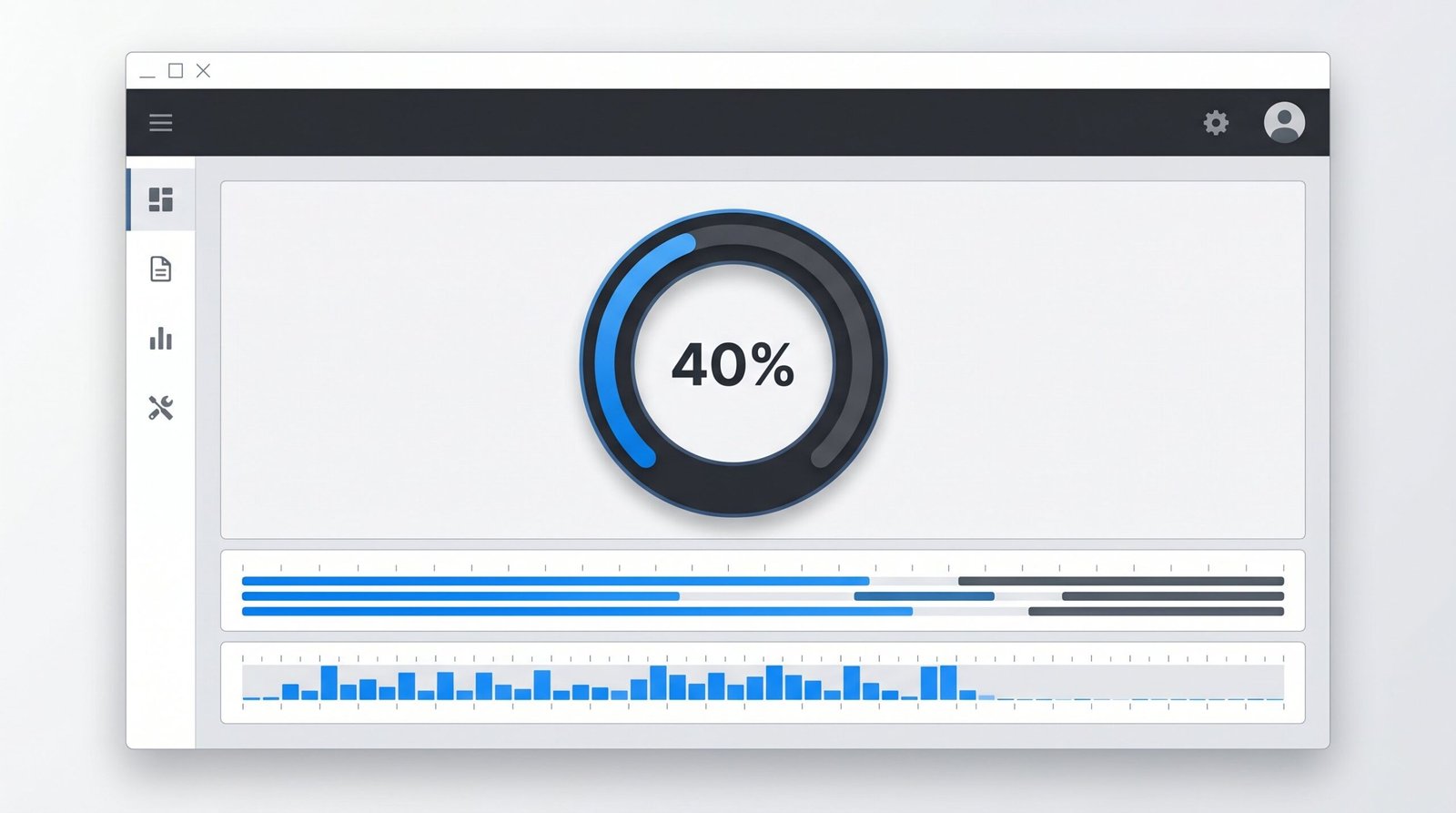
The Activity Meter is the most misunderstood part of the Upwork tracker. Many freelancers assume it is some opaque AI score. It is not. According to Upwork’s documentation on reviewing a work diary, the meter simply counts how many minutes inside each 10-minute segment had any mouse click, scroll action, or keystroke. Cursor movement alone does not count.
That is the key fact most jiggler guides get wrong. A basic USB jiggler that only wiggles the cursor will keep the tracker awake but leave your activity meter near zero. Upwork’s own help docs admit that low activity is normal for tasks like phone calls, reading, and thinking, so a 10 to 30 percent reading is not automatically suspicious. The trouble starts when activity is consistently in the single digits while screenshots show a static window for hours.
A clicker style jiggler that periodically taps the mouse button will lift activity into the 30 to 60 percent range, which actually looks more normal than 100 percent. Real human work clusters in the 40 to 70 percent band over a billing hour. Anyone who blasts a perfect 99 percent activity all day is begging for a closer look from a client who has reviewed enough diaries.
One other point worth understanding. The tracker also auto-pauses on inactivity, and that pause logic is local. Per Upwork’s troubleshooting page, the app can cache up to 24 hours of tracked time if your internet drops. There is no server-side fraud model running against you in real time. The verdict happens later, in your client’s hands.
The Honest Verdict – Can Upwork Detect It?
Three answers, because the question really has three layers.
Upwork the platform: probably not. Upwork has shown no public sign of fingerprinting jigglers, scanning for known apps, or running behavioral classifiers on cursor traces. If they had, you would see it in their dispute documentation, and you do not. The platform’s enforcement model leans on Hourly Protection disputes, where clients escalate, not on proactive scanning.
The client reviewing your diary: very possibly. This is the layer that matters. Your client can open the work diary, see a static screen across 12 consecutive screenshots, and notice that the activity meter is at 5 percent. They do not need to know what a mouse jiggler is. They just need to see that the screen never changed while you billed 90 minutes. A practiced client who has hired several freelancers can pattern-match this in under a minute.
The corporate IT team if you use a company laptop: highly likely. If you are running an Upwork contract on a company-issued machine from another job, the calculus changes completely. Endpoint monitoring tools log USB device IDs and process names. The infamous Hacker News thread on detecting overemployment includes a working Defender KQL query that catches both USB jigglers and software like caffeine.exe within 90 days. Putting a jiggler on a corporate device is the fastest way to be the next person on r/overemployed posting about losing a job.
This is also where the comparison to Microsoft Teams detection gets interesting. Teams cares about presence and uses Graph API signals plus client-side activity. Upwork cares about billable activity and uses its own desktop app. The detection surfaces barely overlap, which is why you can pass one and fail the other on the same workstation.
What Experienced OE Freelancers Do Instead
The community on r/overemployed has moved well past the “buy a USB jiggler” advice from 2022. The 2026 playbook is mostly about avoiding the need for fake activity in the first place.
Pick fixed-price contracts where you can. Upwork’s hourly tracking only exists on hourly contracts. A clean fixed-price scope with milestones removes the work diary entirely. The tradeoff is that you give up Hourly Protection, but if you deliver good work, you also remove the surveillance question. For most OE freelancers stacking platforms, fixed price is the cleanest answer.
Bundle work into deep sessions instead of stretching it across the day. A reasonable two-hour block of real focused work produces a healthy activity profile naturally. You do not need a jiggler if you are actually using the keyboard. The OE crowd that thrives on multiple jobs is often doing parallel deep blocks, not constant pretend activity.
Use manual time honestly for the work that does not generate clicks. Phone calls with a client, reading a long spec, sketching on paper – Upwork explicitly lists these as appropriate manual time use cases. Manual time is not protected by Hourly Protection, but it is also not a policy violation. The downside is that some clients disable manual time on the contract.
If you do use a hardware jiggler, pair it with a programmable mouse. A Logitech or similar mouse with macro buttons lets you script a click or scroll on a hotkey, so your activity meter has a believable rhythm when you actually do come back to work. This is the closest you get to invisible.
And the meta rule, the one the Overemployed community’s 12 rules for working two remote jobs hammers home, is do not give anyone a reason to look. Most diaries are never reviewed beyond a glance. Diaries get scrutinized when a client is already annoyed about deliverables or missed standups. Fix the deliverable problem and the diary almost never gets opened. For freelancers just getting started with overemployment, this is the lesson that costs the most when ignored.
Frequently Asked Questions
Does Upwork explicitly scan for mouse jigglers?
Upwork has not published any rule or signature scanner that names mouse jigglers. The platform records mouse clicks, scrolls, keystrokes, and screenshots six times per hour, then shows that data to clients in the work diary. Suspicion comes from clients reading those screenshots, not from a server-side jiggler scanner.
Can a client see my mouse jiggler in screenshots?
Only if the jiggler is software running on screen with a visible UI. A hardware USB or analog jiggler leaves no on-screen evidence. Clients still see the static screen behind the cursor, which is the bigger tell.
Will a jiggler raise my activity level to 100 percent?
No. The Activity Meter counts mouse clicks, scroll actions, and keystrokes per 10-minute segment. A jiggler that only moves the cursor without clicks or keys produces low activity, sometimes zero. Clicker jigglers raise the number but also raise suspicion.
Is manual time a safer option than tracked time with a jiggler?
Manual time is not covered by Upwork Hourly Protection, so the client can dispute it. It is safer reputationally because no screenshots exist, but you trade payment protection for privacy.
Has anyone been banned from Upwork for a mouse jiggler?
Public reports of Upwork bans tied directly to a jiggler are rare. Most contracts end through client disputes over screenshots or deliverables, not a platform crackdown.
What about Microsoft Teams and Slack on top of Upwork?
Stacking platforms multiplies the risk. Upwork only sees the tracker app, but if your client also requires Teams or Slack presence, you face a separate detection model on each tool. Each platform has different signals and different blind spots.
RELATED POSTS
View all

Best Mouse Jiggler for Microsoft Teams in 2026 (Free Picks That Keep You Green)
May 22, 2026 | by Ian Adair
Best Mouse Jiggler Chrome Extension in 2026: Honest Picks That Actually Work
June 3, 2026 | by Ian Adair
Best Mouse Jiggler Software in 2026: Free Options That Actually Work
May 12, 2026 | by Ian Adair