Can a Physical Mouse Jiggler Be Detected? The Honest Answer for 2026
Quick answer: No, a physical USB mouse jiggler cannot be detected by employer monitoring software in almost all cases. Hardware jigglers operate at the HID (Human Interface Device) level, meaning your computer treats them as a legitimate mouse input. Tools like Teramind, Hubstaff, and Microsoft Defender only see standard cursor movement, not the device generating it. The only real detection risk is physical inspection of your workstation.

Why Physical Jigglers Are Different From Software
The reason physical mouse jigglers are so popular in the overemployed community comes down to one technical detail. Hardware jigglers plug into your USB port and identify themselves to your operating system as a standard HID device, the exact same category as your actual mouse, keyboard, or trackpad.
Your operating system has no way of distinguishing between cursor movement generated by your hand and cursor movement generated by a small USB device sitting in a port behind your monitor. To Windows, macOS, or any monitoring agent sitting on top of the OS, it all looks like the same thing: legitimate user input.
Software jigglers are a completely different story. A program running on your machine shows up in the process list. It uses CPU cycles. It can be flagged by Data Loss Prevention (DLP) tools, antivirus heuristics, or simple process scans by IT. Many corporate machines block installation of unsigned executables entirely, which kills software jigglers before they even start.
If you’re new to this space, our guide on the best mouse jiggler for Windows walks through the specific hardware options that have a strong track record with overemployed users.
Detection Risk Comparison Table
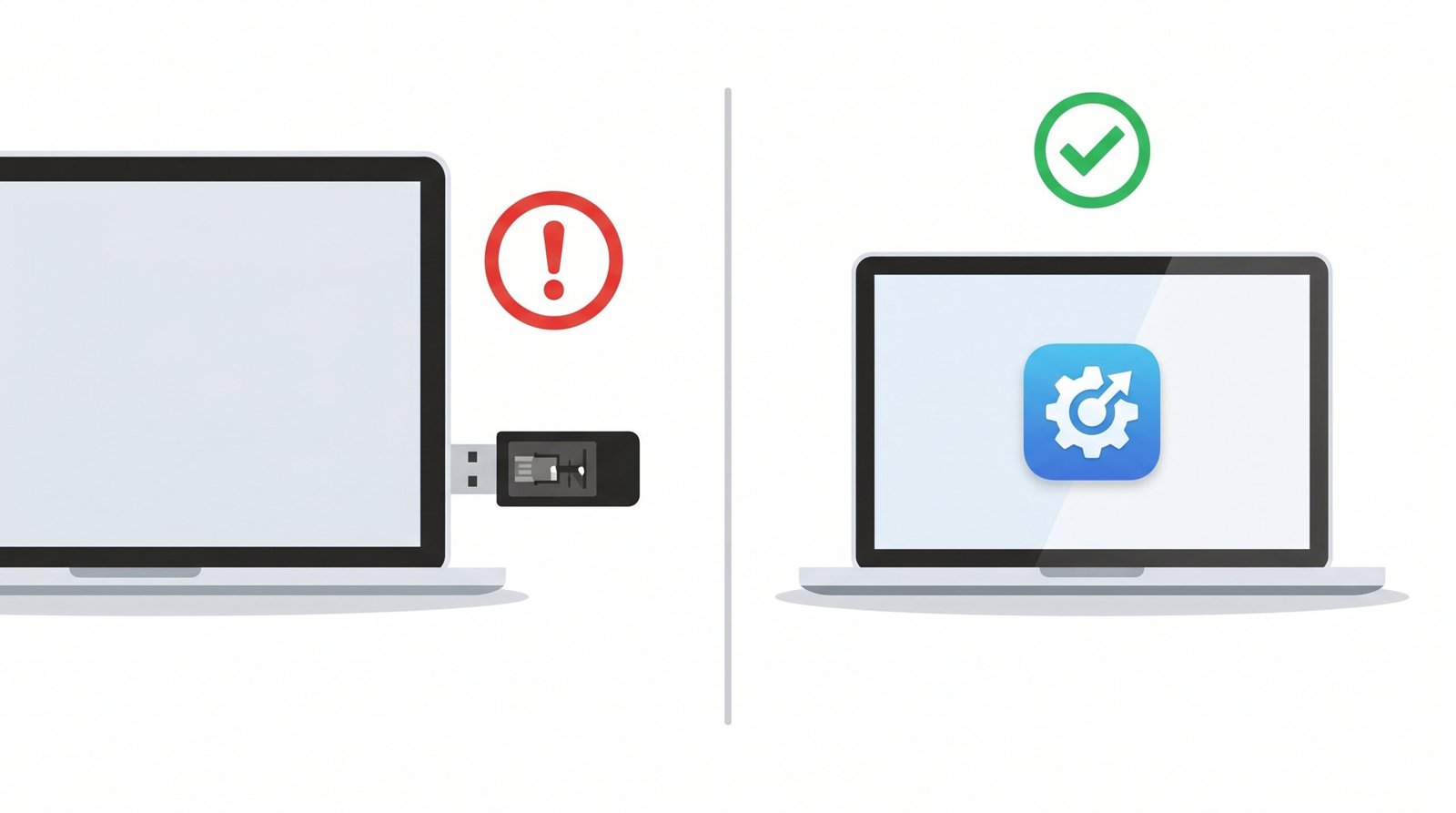
Not all mouse jigglers carry the same risk. Here’s how the major categories stack up against employer monitoring:
| Jiggler Type | How It Works | Detectable by Employer Software? | Detectable by IT Physically? | Risk Level |
|---|---|---|---|---|
| USB HID jiggler (e.g., Vaydeer) | HID layer, registers as mouse | No | Possible if desk inspected | Low-Medium |
| Software jiggler (e.g., MouseJiggle app) | OS process running locally | Yes | N/A, visible in process list | High |
| Mouse with built-in jiggler mode | HID layer, looks like normal mouse | No | Low, looks like a regular mouse | Low |
| DIY circuit (Arduino, Raspberry Pi Pico) | HID layer, custom firmware | No | Possible if USB ports scanned | Low |
The pattern is clear. Anything that lives in software is detectable. Anything that lives in hardware is essentially invisible to the monitoring stack, with the only exposure being a human being looking at your physical desk.
What Monitoring Tools Can and Cannot See
Let’s break down what your company’s monitoring actually captures. Most overemployed workers worry about the wrong things, so understanding the scope of these tools matters.
What employer monitoring software DOES see
- Active application focus and time spent in each app
- Idle vs active status (which is exactly what jigglers manipulate)
- Screenshots at intervals (Teramind, Hubstaff, ActivTrak)
- Keystroke counts and patterns
- URLs visited in monitored browsers
- Files opened and modified
- Processes running on the machine
- Network traffic patterns through corporate VPN
- Login and logout times
What employer monitoring software DOES NOT see
- The hardware device generating mouse movement
- Whether mouse input is human or mechanical
- USB device firmware behavior
- Activity on a different physical machine
- Anything happening on a personal device on a separate network
This is the crucial distinction. Teramind can take a screenshot every 30 seconds showing your cursor moved. It cannot identify that the cursor moved because of a $20 dongle plugged into the back of your monitor. To check Teams specifically, see our breakdown of whether Teams can detect a mouse jiggler.
The One Real Risk: Physical Inspection
If you’re going to get caught with a physical jiggler, it will be a person, not software, that catches you. The realistic scenarios:
- Returning a company laptop: If you’ve been jiggling on a company device and forget to remove the dongle before shipping the laptop back, IT may notice an unknown USB device when they refurbish the machine.
- In-office days: If your J1 or J2 has hot desks or any in-office requirement, a colleague or IT person could see the device.
- Video calls where your setup is visible: Some jigglers are obvious. If your camera angle catches the back of your monitor or your desk, a sharp coworker could spot it.
- USB port audits: Some highly secure environments (financial services, defense contractors) do USB port whitelisting and will flag any unknown HID device. This is rare in standard tech jobs.
For the vast majority of remote workers at standard tech, marketing, and operations roles, none of these scenarios apply. The physical risk is essentially zero if the device stays plugged into your personal monitor or hub at home.
Corporate-Managed Devices vs Personal Devices
This is where overemployed workers need to make a strategic decision. Are you running the jiggler on the company laptop, or on a separate personal machine that you use to manage your J2?
Company-managed laptop scenarios
On a corporate device with full MDM (Mobile Device Management), you have monitoring agents installed at the kernel level. Even here, a USB HID jiggler is invisible to those agents because they sit above the hardware layer. However, the laptop itself can:
- Report connected USB devices to a central inventory system
- Block USB devices entirely via policy (rare but possible)
- Flag unusual login patterns from your home network
The USB inventory risk is real but mild. Most companies don’t actively review USB device logs unless there’s already a security investigation underway. A jiggler appearing as “USB Composite Device” or “HID-compliant mouse” in inventory looks identical to a real mouse.
BYOD and personal device scenarios
If you’re working on your personal hardware (more common for contract roles or some startup environments), the jiggler is essentially completely off the radar. Monitoring tools installed for work access are typically sandboxed to specific applications, not the underlying OS.
The cleanest setup for overemployed workers is two separate physical machines, each with its own monitor, peripherals, and KVM switch if needed. That way the jiggler on Machine A can’t even theoretically interact with Machine B’s monitoring agent. Read more on this in our employer detection breakdown.
Best Practices for Using a Physical Jiggler Without Raising Flags
Even though detection risk is low, there are operational mistakes that can compromise an otherwise clean setup. We suggest the following habits:
1. Don’t use the jiggler during video calls where your setup is visible
If your camera shows the back of your monitor or your USB hub, pause the jiggler. Some workers route the jiggler through a hidden USB extension behind the monitor or under the desk specifically so it’s never visible on camera.
2. Use realistic idle settings
Cheap jigglers move the mouse in a perfectly geometric circle every 30 seconds. That pattern, if ever reviewed in a forensic screen recording, looks robotic. Better jigglers (and software like the ones we cover in our best mouse jiggler software guide) use randomized movement intervals and varying patterns that look like absent-minded human cursor drift.
3. Match your activity status to your real availability
If you’re “active” on Slack at 11pm on a Saturday, that’s a red flag regardless of how you generated the activity. Set the jiggler to run during normal work hours and turn it off when you’re genuinely offline.
4. Avoid jiggling during meetings you should be attending
The classic OE mistake: jiggler running so you look active, but you missed a calendar invite for a stand-up. The jiggler doesn’t help you respond to questions. Use it for keeping status green during async stretches, not as a substitute for real presence in scheduled meetings.
5. Keep the device out of inventory checks
If your company asks you to return hardware (during reorgs, layoffs, or offboarding), unplug everything not company-issued before shipping. Some jigglers are tiny enough to be missed if you’re not paying attention.
What About Slack and Teams Specifically?
The most common monitored apps for “active vs away” status are Slack and Microsoft Teams. Both use the same underlying logic: they detect mouse and keyboard input to determine if you’re at the computer. A physical jiggler successfully keeps your Slack status green and Teams “available” because, from the app’s perspective, there’s real input coming in.
Slack does not run any kind of hardware fingerprinting on your input devices. Teams doesn’t either. If you want the deep-dive on this, our Slack detection guide covers the exact mechanism.
FAQ
Can employers see that you’re using a mouse jiggler?
Not if you’re using a physical USB jiggler. Employer monitoring software sees mouse cursor movement and idle state, but it has no ability to identify the source device generating that movement. Software jigglers, on the other hand, show up as running processes and can be detected by endpoint security tools or DLP scans.
Does a USB mouse jiggler show up on company monitoring software?
USB jigglers register as standard HID devices, identical in appearance to a regular mouse or keyboard. They do not generate any unique process, network traffic, or system log entry that monitoring software flags. The device may appear in a USB inventory log as “HID-compliant mouse” or similar, which looks the same as any real mouse.
Can IT detect a mouse jiggler?
IT can detect a software jiggler easily through process monitoring, application inventory, or DLP tools. IT cannot detect a physical USB jiggler through software alone. The only way IT can identify a hardware jiggler is physical inspection of your workstation or a USB device audit that flags the specific vendor ID and product ID as non-standard.
What is the safest type of mouse jiggler?
The safest option is a small USB HID jiggler from a reputable brand, plugged into a powered USB hub or directly into a peripheral (not the company laptop itself when possible). Better still is a mouse that has a built-in jiggler mode because it looks identical to a normal mouse in any inventory or inspection. DIY Arduino jigglers are also extremely safe from a software detection standpoint, though they require some technical setup.
Can a mouse jiggler be detected by Teramind?
Teramind cannot detect a physical USB mouse jiggler. Teramind monitors application activity, keystrokes, screenshots, web browsing, and idle state, but it does not have hardware-level detection for HID input source. Teramind can detect software jigglers as suspicious processes, especially those running with elevated permissions or unsigned executables.
Is a physical mouse jiggler safer than software?
Yes, significantly safer. A physical jiggler operates outside of the operating system’s process space, so it leaves no software footprint. A software jiggler runs as a process on the company machine, can be flagged by antivirus or DLP tools, and may even violate acceptable use policies that block unauthorized software installation. For overemployed workers, hardware is the consensus choice for exactly these reasons.