Best Mouse Jiggler for Mac in 2026: Free Apps That Actually Work
If you’re running multiple remote jobs on a Mac, you already know the problem. Slack flips you to “Away” after a few minutes. Teams shows that yellow dot. Zoom logs you as inactive. All of these tools check macOS idle time at the OS level, and the moment you stop touching your trackpad, the presence indicators start ratting you out.
A mouse jiggler fixes that. The trick is picking one that actually runs on modern macOS without breaking, doesn’t get flagged by your company’s device management software, and ideally costs nothing. We tested the working options on macOS Sequoia and put together this guide for Mac users who need their presence indicators to stay green.
Quick Answer
The best free mouse jiggler for Mac in 2026 is Mouse Jiggler – Mouse Mover from the App Store. It runs on macOS 12 and newer (including Sequoia), uses subtle circular cursor movements, and costs nothing for the core feature set. For MDM-managed work Macs that block software installs, a physical USB-C trackpad jiggler is the safest route since it leaves no software footprint.
Why Mac Remote Workers Need a Mouse Jiggler
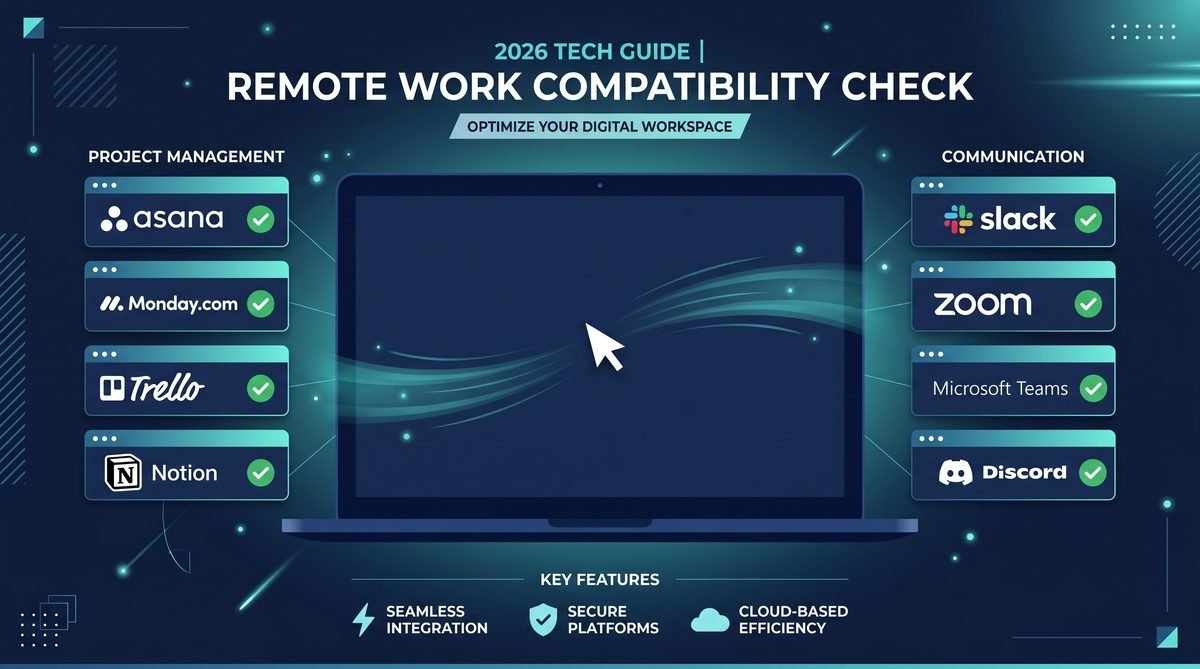
Every major presence app, Slack, Microsoft Teams, Zoom, Discord, Google Chat, hooks into the operating system’s idle timer. On macOS, that timer starts counting from your last input event: a keystroke, a trackpad swipe, a mouse click. Hit the configured threshold (Slack defaults to 10 minutes, Teams to about 5 minutes) and the app marks you Away or Idle.
This matters for overemployed workers because each of your jobs is watching this signal independently. If you’re on a call for Job A while Job B’s Slack quietly flips to Away, your manager at Job B notices. A mouse jiggler keeps that idle timer reset, which keeps every presence indicator showing green across every app you’re logged into.
For a broader breakdown of options across operating systems, see our guide to the best mouse jiggler overall. Mac users have fewer software choices than Windows users, but the ones that work, work well.
How We Picked These Mac Mouse Jigglers
We tested every option on macOS 15 Sequoia and verified each runs cleanly on macOS 14 Ventura. Anything that failed Apple’s notarization, threw Gatekeeper warnings, or required disabling SIP got cut. The remaining picks meet four standards:
- Verified on macOS Sequoia. Many older jigglers, including some popular Homebrew options, broke when Apple tightened Accessibility APIs in macOS 14.
- Free or freemium. No reason to pay for a feature this basic.
- Cursor movement or genuine wake behavior. Some apps only block sleep without simulating input. That distinction matters, more below.
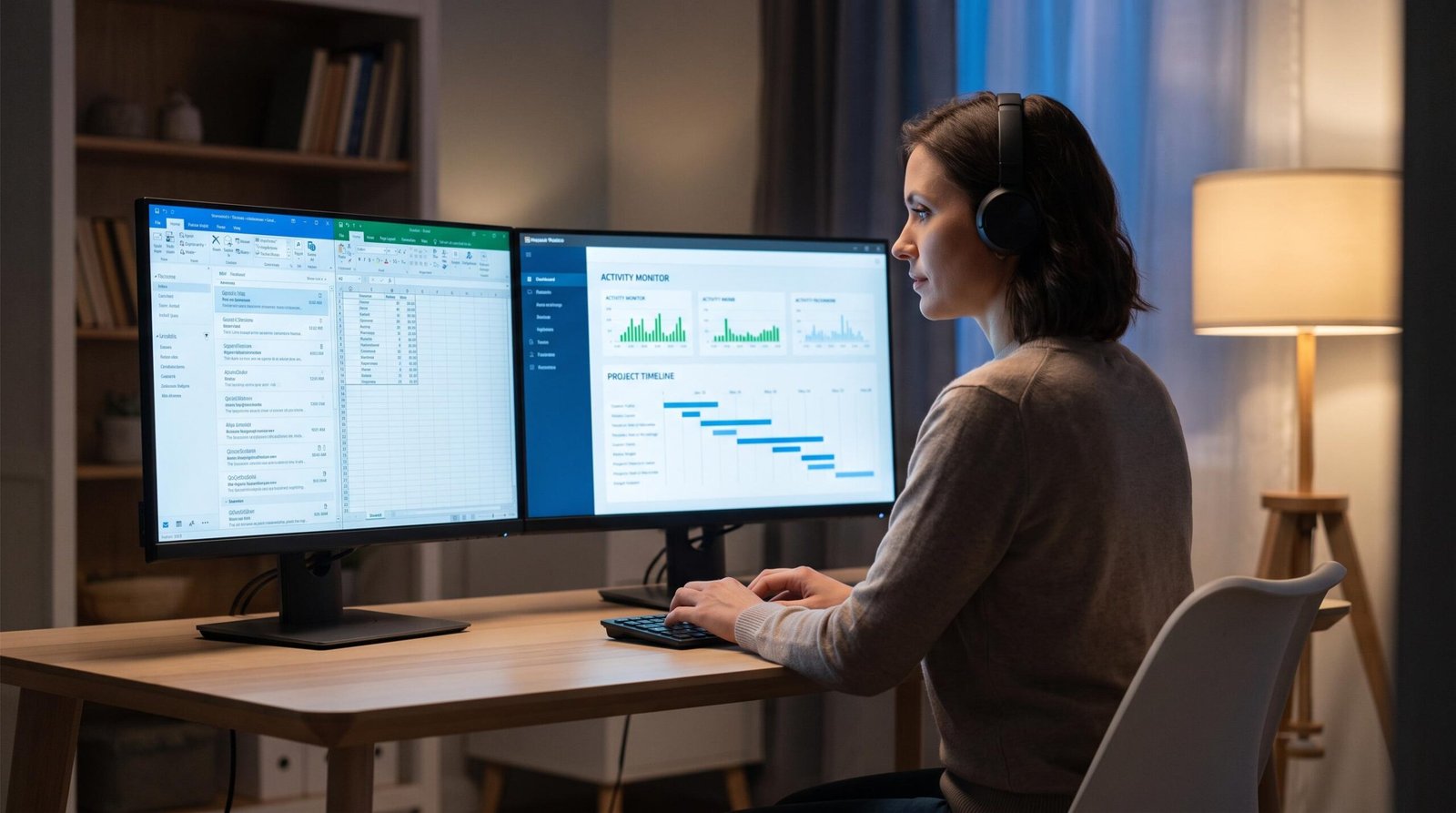
- Lightweight footprint. Nothing that hogs CPU or shows up obviously in Activity Monitor under a recognizable name.
The Best Mouse Jigglers for Mac in 2026
1. Mouse Jiggler – Mouse Mover (Best Overall Free Option)
Price: Free, with optional $5.99 Pro upgrade
macOS: 12 Monterey and newer (tested on Sequoia)
Distribution: Mac App Store
Mouse Jiggler – Mouse Mover on the App Store is the cleanest free option we tested. It moves your cursor in small circles at intervals you control, sits quietly in the menu bar, and starts with one click. Because it’s distributed through the App Store, it’s fully sandboxed and notarized, which means Gatekeeper won’t fight you during install and your IT department’s endpoint tooling is less likely to flag it.
The free tier covers the core use case. The Pro upgrade ($5.99 one-time) adds an “invisible mode” that runs without a menu bar icon, useful if you want zero visual indicators. Reviews on the App Store sit at 4.5 stars across hundreds of ratings, and we had no crashes or input lag during a week of continuous use.
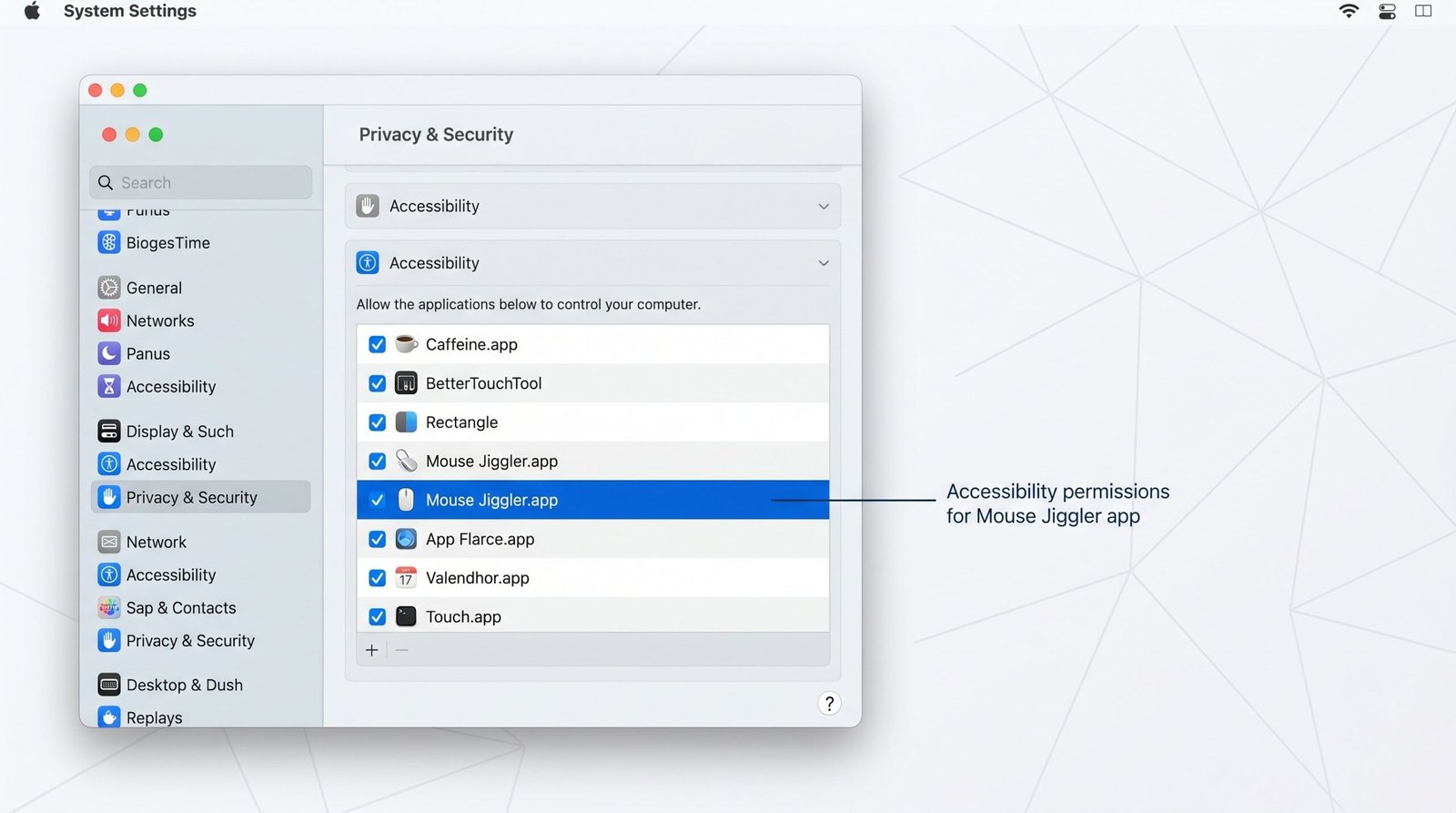
One thing to know: on first launch, you’ll need to grant Accessibility permissions in System Settings. This is non-negotiable for any cursor-moving app on modern macOS. We cover the exact steps in the permissions section below.
2. Jiggler by Stick Software (Best Open-Source Option)
Price: Free
macOS: Check latest release notes for current compatibility
Distribution: Direct download
Jiggler by Stick Software has been around since 2007, which makes it one of the longest-running mouse jigglers on any platform. It’s free, lightweight, and offers a “zen mode” that simulates user activity without actually moving the cursor visible to you, which is genuinely useful if cursor twitching annoys you during light reading or document review.
The trade-off: because it’s not on the App Store, you’ll get a Gatekeeper warning on first launch. You’ll need to right-click the app and choose Open to bypass it. Some older versions had hiccups on macOS 14 and 15, so always grab the latest build from the official site rather than mirrors.
Jiggler is a good fit if you prefer open-source tools, want something with a long track record, or specifically want the no-visible-movement option that Mouse Jiggler Mouse Mover doesn’t offer for free.
3. KeepingYouAwake (Best Caffeinate Alternative)
Price: Free, MIT license
macOS: Actively maintained for current macOS
Distribution: GitHub releases or Homebrew
KeepingYouAwake on GitHub is technically not a mouse jiggler. It’s a menu bar wrapper around macOS’s built-in caffeinate command, which prevents your Mac from sleeping. It doesn’t move the cursor. This matters: caffeinate alone will not reset Slack, Teams, or Zoom idle timers, because those apps check user input activity, not display sleep state.
So why include it? Two reasons. First, if your only problem is your Mac going to sleep during long downloads, video renders, or remote SSH sessions, KeepingYouAwake is the right tool and a mouse jiggler is overkill. Second, you can pair it with a hardware jiggler: KeepingYouAwake keeps the display awake while the hardware jiggler resets the input idle timer. Together they cover both signals.
If you specifically need cursor movement to fool presence detection, this is not your tool. Use one of the two above instead.
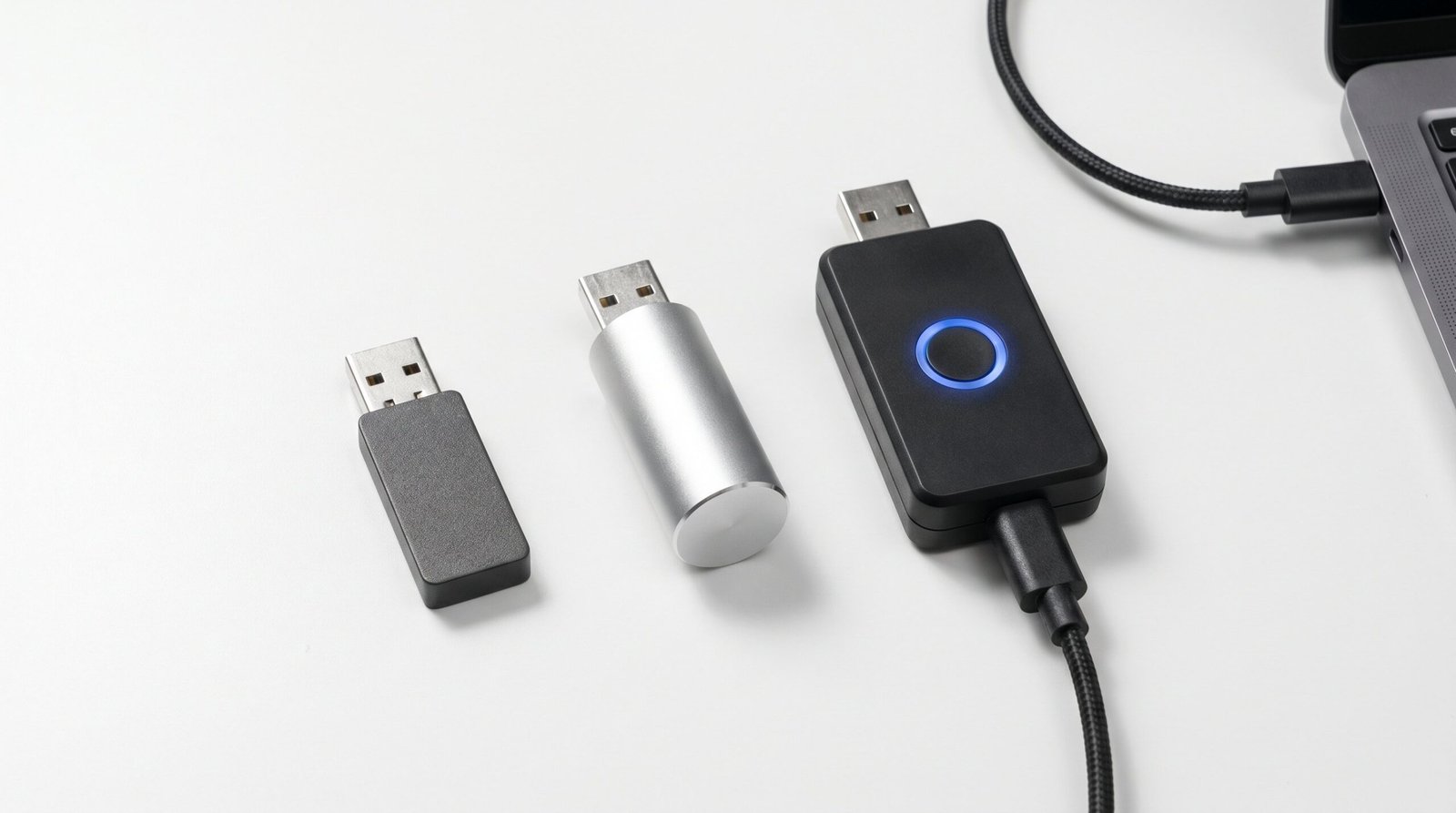
4. Hardware USB-C Trackpad Jiggler (Best for MDM-Managed Macs)
If your work Mac is managed by Jamf, Intune, Kandji, or Mosyle, your IT team can block software installs entirely or push policies that quarantine anything that touches Accessibility APIs. In that situation, a physical USB-C or Lightning trackpad jiggler is the cleanest workaround.
These devices plug into your Mac’s USB-C port and use a tiny rotating arm or vibrating pad to physically wiggle a real mouse you place on top. Because the input comes from a genuine HID device, macOS sees it as a normal cursor event. No software, no Accessibility prompt, no MDM detection surface. Search Amazon for “MacBook trackpad jiggler” or “USB-C mouse jiggler” and you’ll find several options in the $15 to $30 range.
The drawback is that you need a physical mouse to place on the spinner, and the device itself is visible on your desk. For home offices that’s fine. For hybrid workers who occasionally take their Mac into a shared office, software is more discreet.
Comparison Table: Mac Mouse Jiggler Options
| App | Free? | macOS Compatibility | Cursor Movement? | MDM Safe? | Best For |
|---|---|---|---|---|---|
| Mouse Jiggler – Mouse Mover | Yes (Pro $5.99) | 12 Monterey and newer | Yes, circular | Moderate (App Store sandboxed) | Most users, personal Macs |
| Jiggler by Stick Software | Yes | Latest build for Sequoia | Yes, optional zen mode | Low (direct download) | Open-source fans, long track record |
| KeepingYouAwake | Yes (MIT) | Actively maintained | No (prevents sleep only) | Moderate (GitHub release) | Display sleep prevention, pair with hardware |
| Hardware USB-C Jiggler | $15 to $30 hardware | All macOS versions | Yes, physical movement | High (no software footprint) | MDM-managed work Macs |
Setting Up Accessibility Permissions (The #1 Setup Issue)
This is where 80% of Mac users get stuck. Every software mouse jiggler needs permission to “control your computer,” which Apple gates behind the Accessibility privacy setting. Without this permission, the app will install fine but do absolutely nothing when you click Start.
Here’s the exact path on macOS Sequoia:
- Open System Settings (the renamed System Preferences).
- Go to Privacy & Security in the left sidebar.
- Scroll down and click Accessibility.
- Find your jiggler app in the list and toggle it on. If it’s not there, click the plus button and add it manually from your Applications folder.
- You may be prompted to enter your Mac password to confirm the change.
- Quit and relaunch the jiggler app for the new permission to take effect.
If the toggle is grayed out or you see “Managed by your organization,” your Mac is under MDM control and your IT team has locked Accessibility settings. That’s a strong signal that software jigglers will be flagged on this device, and the hardware option is what you want.
Will My Employer Detect a Mouse Jiggler on My Mac?
This is the question every overemployed worker eventually asks. The honest answer: it depends on what your employer is monitoring and what kind of jiggler you’re using.
For software jigglers on a personal Mac that you VPN into a work environment, detection is essentially impossible because your employer has no visibility into installed apps. For software jigglers on a company Mac with MDM, detection ranges from possible to likely depending on the EDR (endpoint detection and response) tooling installed. CrowdStrike, SentinelOne, and similar tools can enumerate Accessibility-enabled apps. They typically don’t flag mouse jigglers as malicious, but a manual audit by IT would surface them.
Hardware jigglers leave no software footprint and are functionally undetectable through standard monitoring, though anyone walking past your desk will see the device. For a deeper look at how detection actually works across platforms, read our full breakdown of whether mouse jigglers can be detected. If you’re specifically worried about Teams or Zoom flagging you, we also have dedicated guides on Microsoft Teams presence detection and Zoom activity monitoring.
macOS Sequoia Compatibility: What Broke and What Still Works
Apple has tightened security around Accessibility APIs in every macOS release since Monterey. Sequoia (macOS 15) introduced weekly Accessibility re-prompts for many apps, which caught a lot of Mac jiggler users off guard when their app silently stopped working after a few days.
The two software options we recommend, Mouse Jiggler Mouse Mover and the latest Jiggler from Stick Software, are both updated to handle this. If you’ve been using an older Homebrew-installed jiggler or a script-based solution from a Reddit thread circa 2022, it’s almost certainly broken on Sequoia. Update or switch.
Apple Silicon (M1, M2, M3, M4) compatibility is universal across all the options here. None of them require Rosetta.
Software vs. Hardware: Which Should You Pick?
The decision tree is straightforward:
- Personal Mac, working remote on your own equipment? Use Mouse Jiggler Mouse Mover or Jiggler. Free, easy, invisible.
- Company Mac, no MDM or light MDM? Same answer. Verify with a quick check of System Settings to see if Accessibility is user-controllable.
- Company Mac with aggressive MDM (Jamf, Intune, etc.)? Hardware jiggler. Don’t install software you don’t have to.
- Long downloads or remote sessions where sleep is the actual problem? KeepingYouAwake. No need for cursor movement.
For broader software comparisons that include cross-platform tools, our guide to the best mouse jiggler software covers Windows-specific options too, useful if you’re juggling jobs across multiple operating systems.
Common Setup Mistakes to Avoid
A few things we see Mac users get wrong with mouse jigglers:
Trusting the menu bar to confirm it’s working. Most jigglers show a status icon that doesn’t actually verify activity is being registered by macOS. The real test: open Terminal and run ioreg -c IOHIDSystem | grep HIDIdleTime. If the number stays low while your jiggler is on, it’s working. If it climbs, your Accessibility permission probably needs a refresh.
Setting the interval too long. Slack’s default idle threshold is 10 minutes. If your jiggler is set to nudge the cursor every 8 minutes, you’re cutting it close. Set intervals to 2 or 3 minutes for safety.
Forgetting to add the jiggler to Login Items. If you reboot your Mac and forget to relaunch the app, your presence will go yellow before you notice. Set it to launch at login.
Running two jigglers at once. A few users layer a software jiggler on top of a hardware one “for safety.” This can cause input conflicts and erratic cursor behavior. Pick one.
Frequently Asked Questions
Does a mouse jiggler work on Mac?
Yes. Mouse jigglers work on macOS exactly the way they do on Windows, by simulating cursor movement or input events that reset the operating system’s idle timer. Mac-specific apps like Mouse Jiggler Mouse Mover and Jiggler are designed for this, and hardware jigglers work on any Mac with a USB-C or USB-A port.
What is the best free mouse jiggler for Mac?
Mouse Jiggler – Mouse Mover on the App Store is the best free option for most users. It’s notarized, runs on macOS 12 and newer, uses subtle circular cursor movements, and has a clean menu bar interface. Jiggler by Stick Software is the best open-source alternative if you prefer non-App Store software.
Do mouse jigglers work on macOS Sequoia?
Yes, but only the actively maintained ones. macOS Sequoia (15) introduced stricter Accessibility permission handling, which broke many older jigglers. Mouse Jiggler Mouse Mover, the latest Jiggler from Stick Software, and hardware-based jigglers all work fine on Sequoia. Older Homebrew or script-based jigglers may not.
Can my employer detect a mouse jiggler on my Mac?
It depends on the device and the monitoring stack. On a personal Mac, detection is essentially impossible. On a company Mac with MDM and EDR tools like CrowdStrike or SentinelOne, software jigglers may be visible to IT during an audit, though they’re rarely flagged as malicious. Hardware jigglers leave no software footprint and are functionally undetectable through standard monitoring.
Why does my Mac mouse jiggler need Accessibility permissions?
macOS treats simulated input as a privileged action because it can be abused by malware. Any app that moves the cursor or generates input events programmatically needs Accessibility permission, which is granted in System Settings under Privacy and Security. This is required for all software jigglers on macOS 12 and newer. Hardware jigglers don’t need this permission because they send physical input through the HID stack.
What’s the difference between KeepingYouAwake and a mouse jiggler?
KeepingYouAwake is a wrapper around the macOS caffeinate command. It prevents your Mac from sleeping but does not simulate any user input. This means apps like Slack, Teams, and Zoom will still mark you as Away after their idle threshold, because they track input events, not display state. A mouse jiggler simulates actual cursor activity, which is what resets those presence indicators.
The Bottom Line
For most Mac users running a remote job (or three), Mouse Jiggler – Mouse Mover from the App Store is the right starting point. It’s free, current, and handles the core job without any of the friction that comes from non-notarized software. If your Mac is locked down by your IT team, skip software entirely and put a $20 USB-C trackpad jiggler on your desk. And if you just want your Mac to stop sleeping during long-running tasks, KeepingYouAwake is the cleanest minimal tool for that specific job.
Whatever you pick, get the Accessibility permissions sorted on day one, set the jiggle interval to 2 or 3 minutes for safety, and add the app to your Login Items so a reboot doesn’t blow up your presence streak. The whole setup takes five minutes and pays for itself the first time you don’t have to explain why you went yellow during a 90-minute meeting on another job.