

Best Mouse Jiggler for Windows in 2026 (Hardware vs. Software, Tested)
May 13, 2026 | by Ian Adair
Best Mouse Jiggler for Windows in 2026 (Hardware vs. Software, Tested)
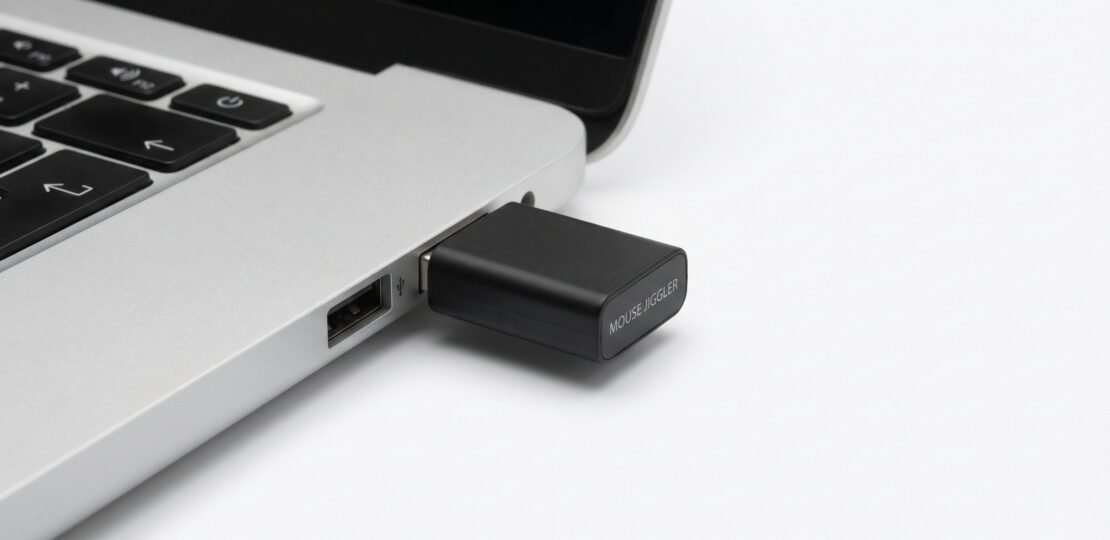
For Windows remote workers running activity-monitored machines, the Vaydeer USB Mouse Jiggler is the best overall pick. It’s a hardware device that registers as a standard HID mouse, making it invisible to corporate monitoring software that scans running processes. Software jigglers are free but show up in Task Manager, which matters if you’re juggling jobs.
Our Top Mouse Jiggler Picks for 2026
Before getting into the detail, here’s the quick-reference table. Pick based on whether your work machine has IT monitoring and how much risk tolerance you have.
| Product | Type | Price Range | Best For |
|---|---|---|---|
| Vaydeer USB Mouse Jiggler | Hardware | $20-30 | Corporate-managed Windows laptops |
| Wellday Mouse Mover | Hardware | $15-20 | Budget pick, plug-and-play simplicity |
| Mouse Jiggler by Marcus Hentrich | Software | Free | Personal machines, low-monitoring environments |
| Tech8 USA Programmable Jiggler | Hardware | $30-40 | Scheduling, on/off switch control |
| LIBERRWAY Physical Mouse Mover | Physical platform | $25-35 | No USB port required, works with any mouse |
Why Windows Remote Workers Use Mouse Jigglers
If you’re juggling more than one remote job, you already know the math. Activity tracking software flags you as away after a few minutes of inactivity. Status indicators in Microsoft Teams, Slack, and Zoom flip from green to yellow. Productivity reports get generated. Managers check screenshots taken at random intervals. A mouse jiggler keeps the cursor moving so none of that happens.
Below is what you’re actually working around.
How Employee Activity Monitoring Works on Windows
Most companies running monitoring software use one of a handful of tools. The biggest names are Teramind, Hubstaff, ActivTrak, Time Doctor, and Microsoft Viva Insights. Some companies build in-house tools that hook into Windows event APIs. A few use simpler screenshot tools like Tattletale or DeskTime.
Here’s what these tools actually track:
- Mouse movement and clicks. A counter increments on every cursor movement and click event. If no events arrive for a configured window (usually 3-10 minutes), the session is marked idle.
- Keystroke activity. Not the content of keystrokes in most cases (that’s keylogging, which has separate legal disclosures), but the rate at which keys are pressed.
- Active application focus. Which window is in the foreground and for how long.
- URL and document titles. The page title of the browser tab you have open, or the document name in Word.
- Screen captures. Periodic screenshots, often blurred for privacy on some plans but raw on others.
- Running processes. Many tools log a list of running .exe files at intervals. This is the detail that matters for jiggler choice.
None of this is exotic. It’s standard endpoint software that an IT admin installs through Group Policy or Intune. The point is that the same software that calculates your “productive hours” can also see what apps you’re running.
Hardware vs. Software Jigglers: The Detection Risk That Most Reviews Ignore
This is the section that matters and the one every other review skips. If you read ten “best mouse jiggler” articles, you’ll see comparisons of features: scheduling, portability, price, LED indicators. What you almost never see is a clear explanation of detection risk, which is the entire reason you’re shopping for a jiggler in the first place.
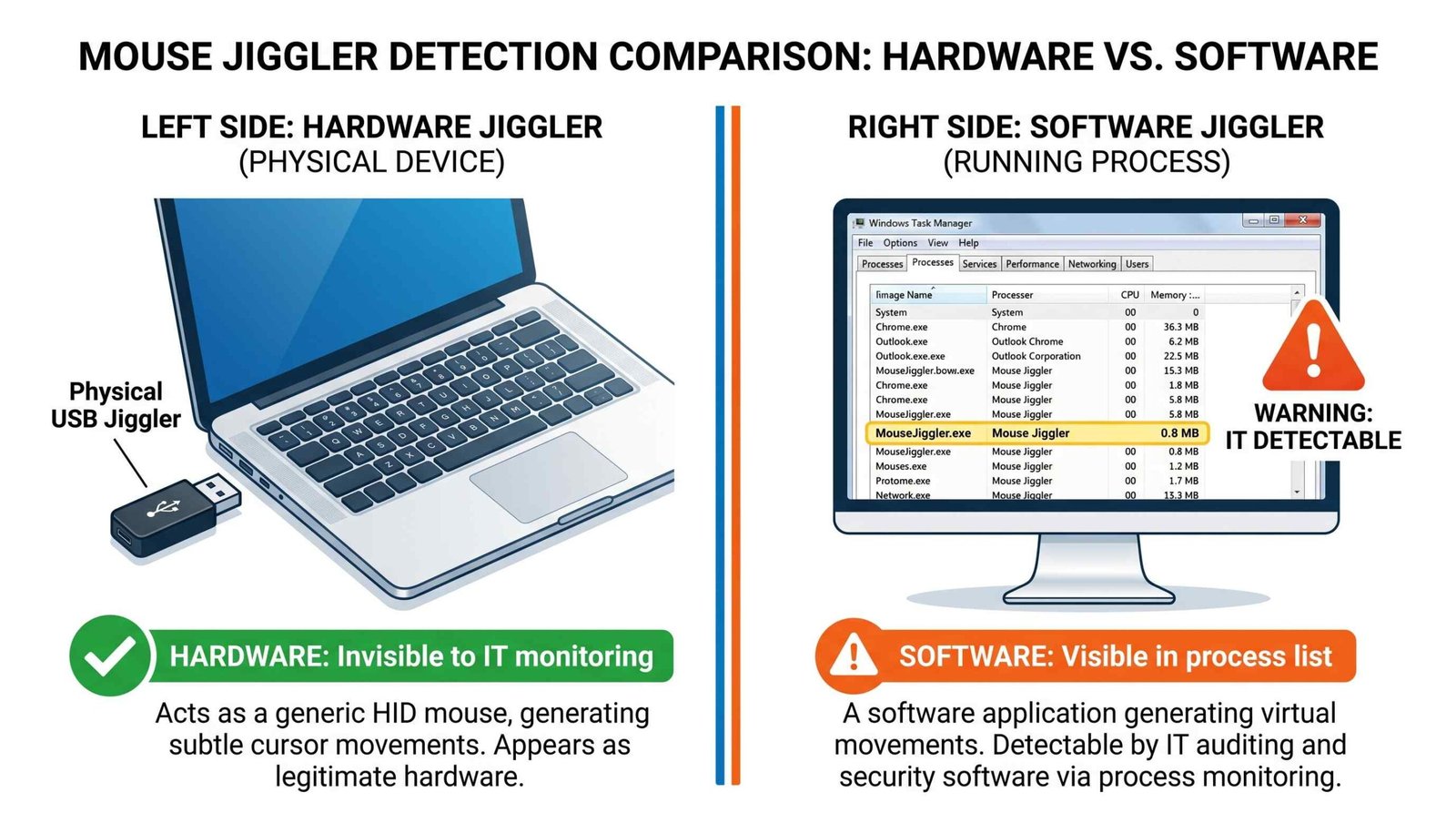
Software jigglers run as Windows applications. When you launch Mouse Jiggler by Marcus Hentrich, WiggleMouse, Move Mouse from the Microsoft Store, or any of the dozens of similar tools, they appear as a running process. Open Task Manager and you’ll see something like MouseJiggler.exe or MoveMouse.exe in the Processes tab. That information is also available to any monitoring software running on the machine. Corporate monitoring tools can be configured to log all running processes, alert on specific process names, or flag unusual executables. An IT admin who runs a query for “jiggler” across their fleet finds every machine running one. They don’t even need to be actively looking, some monitoring suites flag known anti-monitoring tools by default.
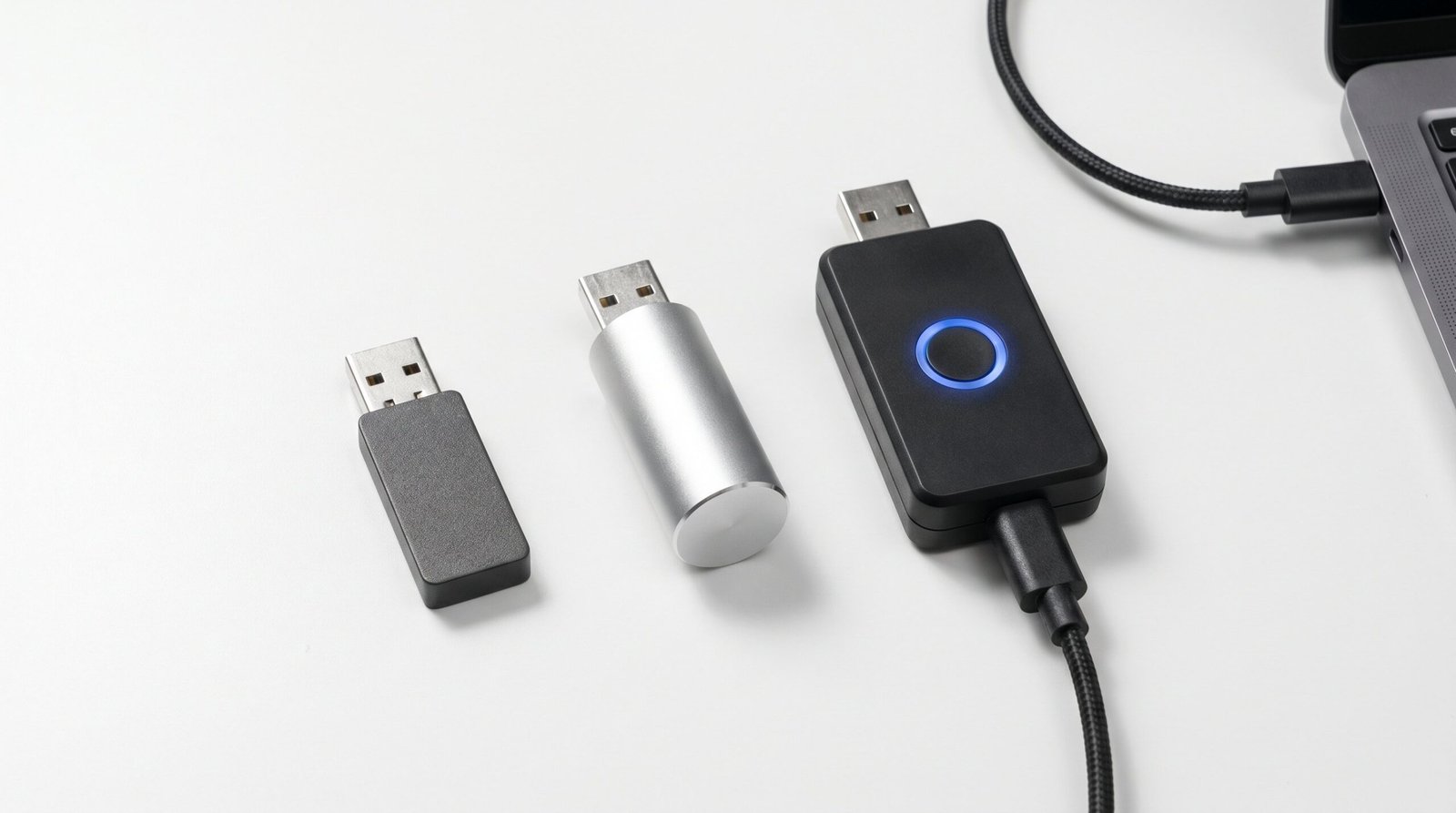
Hardware jigglers are physical USB devices that emulate a standard mouse. When you plug one in, Windows sees it as a Human Interface Device (HID), the same category as your real mouse, keyboard, and any other input device. The device manager shows it as something generic like “HID-compliant mouse” or “USB Input Device.” There’s no process to log, no executable to flag, no application name to scan for. From the operating system’s perspective, the cursor movement looks identical to a human moving a mouse. Monitoring software running on the machine cannot distinguish a hardware jiggler from a real mouse without explicitly inspecting USB hardware IDs, which corporate monitoring tools generally don’t do because it would create false positives on every USB peripheral users plug in.
The tradeoff is real but small. Hardware jigglers cost between $15 and $40 and require an available USB port. Software jigglers are free and require nothing but a download. If you’re working on a personal machine for a contract job with minimal oversight, software is fine. If you’re working on a corporate-managed Windows laptop with MDM enrollment, monitoring software, and the kind of IT policy that involves quarterly compliance audits, hardware is categorically the safer choice. The cost of being wrong is your job, so the $25 hardware tax pays for itself the first month.
One more thing worth saying directly: hardware jigglers are not magic. They prevent idle detection. They don’t hide your work patterns, change what apps you run, or affect screenshot content. If your monitoring captures a screenshot of you not working, the jiggler doesn’t help with that. It’s a tool for one specific problem, idle status, and that’s all.
The Best Mouse Jigglers for Windows
Best Overall Hardware Jiggler: Vaydeer USB Mouse Jiggler
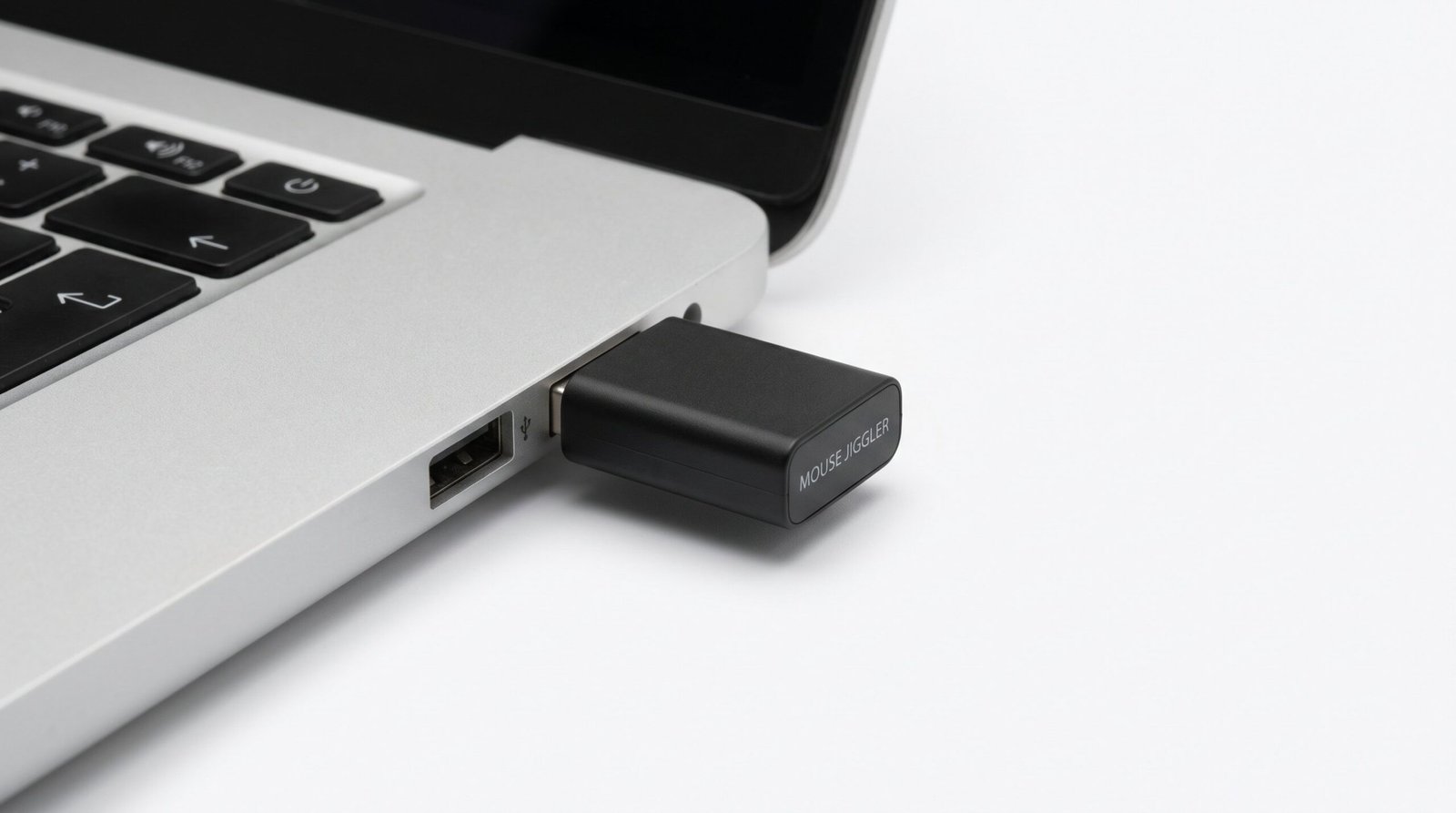
The Vaydeer is the one we keep coming back to. It’s a small USB dongle (about the size of a USB drive) that plugs into any USB-A port. Windows recognizes it as a HID mouse instantly, no drivers, no setup. It moves the cursor in a tight, barely-visible pattern every few seconds.
Specs: USB-A connector, plug-and-play, on/off physical switch on most models, works on Windows 7 through Windows 11, also Mac and Linux. The newer Pro model has a customizable jiggle interval via a tiny dial.
Pros: Genuinely invisible to software monitoring. Physical switch lets you turn it off without unplugging. Small enough to leave in a laptop bag. Works through USB hubs.
Cons: The cursor movement is visible if someone is actually watching your screen (a remote screen-share, for example). Costs more than a software solution.
Best for: Anyone on a corporate Windows machine with monitoring software. This is the default pick if you don’t know your IT environment well.
Best Budget Hardware Option: Wellday Mouse Mover
The Wellday is the cheaper sibling of the Vaydeer with most of the same characteristics. Same plug-and-play HID setup, same invisibility to software monitoring, slightly less polished build quality and a smaller jiggle radius.
Specs: USB-A connector, plug-and-play, fixed jiggle interval (usually around 30 seconds), Windows and Mac compatible.
Pros: Cheapest reliable hardware option. Same detection profile as the Vaydeer (registers as a generic HID mouse). Tiny form factor.
Cons: No physical switch on most models, so you have to unplug to disable. No interval customization. Build quality varies by seller (buy from Amazon with returns enabled).
Best for: First-time jiggler buyers who want to test the concept before committing to a more expensive device. Workers who travel light and need redundancy in different bags.
Best Software Jiggler (Low-Risk Environments): Mouse Jiggler by Marcus Hentrich
The original Mouse Jiggler by Marcus Hentrich is the most-installed software jiggler in existence. It’s free, open source, and has been around since 2008. The interface is a single window with a checkbox to start jiggling and a slider for movement intensity. The “Zen jiggle” mode moves the cursor invisibly (logically rather than visually).
Why it’s the software pick: It’s the cleanest implementation, runs in under 1 MB of RAM, and doesn’t phone home anywhere. The source is on GitHub if you want to verify what it does.
When to use it: Personal machines, contract work where you BYO device, companies known to have hands-off IT (small startups, agencies without managed endpoints). Anywhere the process list isn’t being scanned.
When NOT to use it: Corporate-managed Windows laptops, machines enrolled in Intune or another MDM, any environment with monitoring software you’ve identified (check Task Manager for known agents like teramind_agent.exe, HubstaffClient.exe, or similar).
Best for Stealth Scheduling: Tech8 USA Programmable Jiggler
The Tech8 USA programmable jiggler is what to get if you want more control than a simple always-on USB device. It includes a physical switch and a small set of buttons that let you set the jiggle interval (15 seconds to several minutes) and even configure idle/active cycles so the movement isn’t perfectly metronomic.
Programmable timing matters because some monitoring software has begun flagging suspiciously regular activity patterns. A cursor that twitches exactly every 30.0 seconds for eight hours straight looks more like a script than a human. The Tech8 lets you set ranges so the movement looks more natural.
Specs: USB-A connector, hardware HID device, programmable intervals between 15 seconds and 10 minutes, physical on/off switch, optional randomization.
Pros: Hardware-level invisibility plus pattern randomization. Useful if you’re worried about analytics flagging mechanical-looking activity.
Cons: Most expensive option in this guide. Programming the device requires reading the manual once.
Best for: Long-term overemployed workers on machines with advanced monitoring (Teramind, ActivTrak with behavior analytics).
Best Physical Mouse Mover (No USB Port Required): LIBERRWAY Mouse Mover Platform
Physical mouse movers are a different category. Instead of plugging into the computer, they’re a small motorized platform you set your actual mouse on top of. The platform rocks back and forth slowly, dragging your mouse with it.
Because nothing is plugged into the computer, there’s literally nothing to detect at any software or hardware level. The downside is that the device is visible on your desk, so it’s not useful in an office setting or anywhere a coworker might see it on camera.
Specs: Battery or USB-C powered, fits most standard mice, silent operation on premium models, takes up about 4-inch by 4-inch desk footprint.
Best for: Workers who can’t use USB ports (locked-down USB policies blocked at the BIOS or Group Policy level) and work from home where the device won’t be seen on camera.
Mouse Jiggler Comparison Table
| Product | Type | Price | Scheduling | Windows 11 Compatible | Detection Risk | Best For |
|---|---|---|---|---|---|---|
| Vaydeer USB Mouse Jiggler | Hardware (HID) | $20-30 | Fixed interval | Yes | Very low | Corporate Windows machines |
| Wellday Mouse Mover | Hardware (HID) | $15-20 | Fixed interval | Yes | Very low | Budget hardware pick |
| Mouse Jiggler (Hentrich) | Software | Free | Yes (in app) | Yes | Medium (visible in process list) | Personal/low-monitoring |
| Tech8 USA Programmable | Hardware (HID) | $30-40 | Yes (programmable) | Yes | Very low | Behavior-analytics environments |
| LIBERRWAY Mouse Mover | Physical platform | $25-35 | On/off only | Yes | None (no connection) | Locked USB policies |
How to Set Up a Mouse Jiggler on Windows
Setting Up a Hardware USB Jiggler
Hardware setup is intentionally trivial. Plug the jiggler into any available USB-A port. Windows detects it as a HID-compliant mouse and installs the generic Microsoft driver automatically (no driver download required, no admin permissions needed in most environments). Within five seconds you should see the cursor move on its own.
To confirm it’s working, open a Word document or any text field, leave the cursor visible, and wait. You should see small movements every 15-60 seconds depending on the device. If your jiggler has a physical switch, slide it to “on.” If you want to confirm Windows registered it correctly, open Device Manager (Win+X, then M), expand “Mice and other pointing devices,” and you should see a second entry alongside your real mouse.
Installing and Configuring Mouse Jiggler Software
For Mouse Jiggler by Marcus Hentrich, download the latest release from the project’s GitHub page. Extract the ZIP, then run MouseJiggler.exe. There’s no installer, it runs from any folder. Tick the “Enable jiggle” checkbox and optionally enable “Zen jiggle” if you don’t want the cursor to visibly move.
For safer use, minimize the window to the system tray rather than the taskbar (right-click the tray icon to configure). Do not add it to startup on a work machine unless you’re certain your IT environment doesn’t audit startup items. Always quit the app cleanly before you log off, especially if your company runs end-of-session reports.
Mouse Jiggler Safety: What IT Departments Can and Can’t See
Here’s a straight, non-paranoid breakdown of what’s actually visible to a monitoring stack.
Hardware USB jigglers are essentially invisible to software monitoring. The cursor movement they generate is identical to human input at the API level. The device itself shows up in Device Manager as a generic HID mouse, sharing a category with thousands of other peripherals. Corporate monitoring software does not typically inventory connected USB devices in a way that would flag a jiggler specifically. The only way a hardware jiggler gets caught is if a) someone physically sees the device plugged into your laptop, or b) your company runs a USB hardware ID whitelist (rare outside high-security environments like finance compliance desks or defense contractors).
Software jigglers are detectable but rarely actively flagged. The process appears in Task Manager and in any process inventory the monitoring agent collects. Whether anyone looks at that data is a different question. In most companies, process logs are kept for incident response, not actively reviewed. The risk profile depends entirely on your IT culture: at a 50-person startup, no one is scanning for “MouseJiggler.exe.” At a large enterprise with a SOC and behavior analytics, the risk is meaningfully higher.
Physical mouse movers are invisible to monitoring but visually obvious. Nothing is connected to the machine, so there’s nothing for any software to see. The catch is that a motorized platform sitting on your desk is noticeable on camera or to anyone walking by. If you ever take a Zoom call where your desk is visible, the platform is going to show up.
Our suggestion: Default to hardware on any corporate-managed machine. Use software only on personal or BYO devices where the process list isn’t being scanned. Skip physical movers unless you have a specific reason (USB ports disabled by policy).
One reminder: this guide describes detection capabilities, not company policy or legal advice. Many companies have clauses in their handbooks about activity-faking tools. The information here is about what’s technically detectable. What you do with that information is up to you, and we’re not in the business of making that call.
Frequently Asked Questions About Mouse Jigglers
Are mouse jigglers legal?
Owning and using a mouse jiggler is legal everywhere we’re aware of. It’s a USB peripheral or a piece of free software, nothing more. What can get complicated is the contract you signed with your employer. Most company handbooks include language about “honest representation of work” or “use of company time,” and using a jiggler to fake activity could fall under those clauses. The legality question and the employment-risk question are separate, and the second one is the one most workers actually care about.
Can IT detect a hardware mouse jiggler?
In practice, no. Hardware jigglers register as standard Human Interface Devices, indistinguishable from a real mouse at the software level. Corporate monitoring software (Teramind, Hubstaff, ActivTrak, etc.) does not flag generic HID devices. The only realistic detection vectors are physical (someone sees the device plugged into your laptop) or USB hardware ID inspection (rare, used in high-security environments only). For overemployed workers on standard corporate laptops, a hardware jiggler is the lowest-risk option.
Do mouse jigglers work with Windows 11?
Yes. Both hardware and software jigglers work without issues on Windows 11. Hardware devices use the same HID class drivers Windows has supported for two decades, so plug-and-play works identically across Windows 7, 10, and 11. Software jigglers like Marcus Hentrich’s Mouse Jiggler also run fine on Windows 11, though Windows Defender SmartScreen may warn on first launch (a one-click bypass).
What’s the difference between a mouse jiggler and a mouse mover?
The terms are often used interchangeably, but there’s a subtle distinction. A “mouse jiggler” usually refers to a USB device or software that simulates mouse input directly to the operating system, without physically moving anything. A “mouse mover” or “physical mouse mover” usually refers to a motorized platform that physically rocks your real mouse back and forth. Both achieve the same outcome (preventing idle status), but they have very different detection profiles and physical footprints.
Will a mouse jiggler keep Teams/Slack status green?
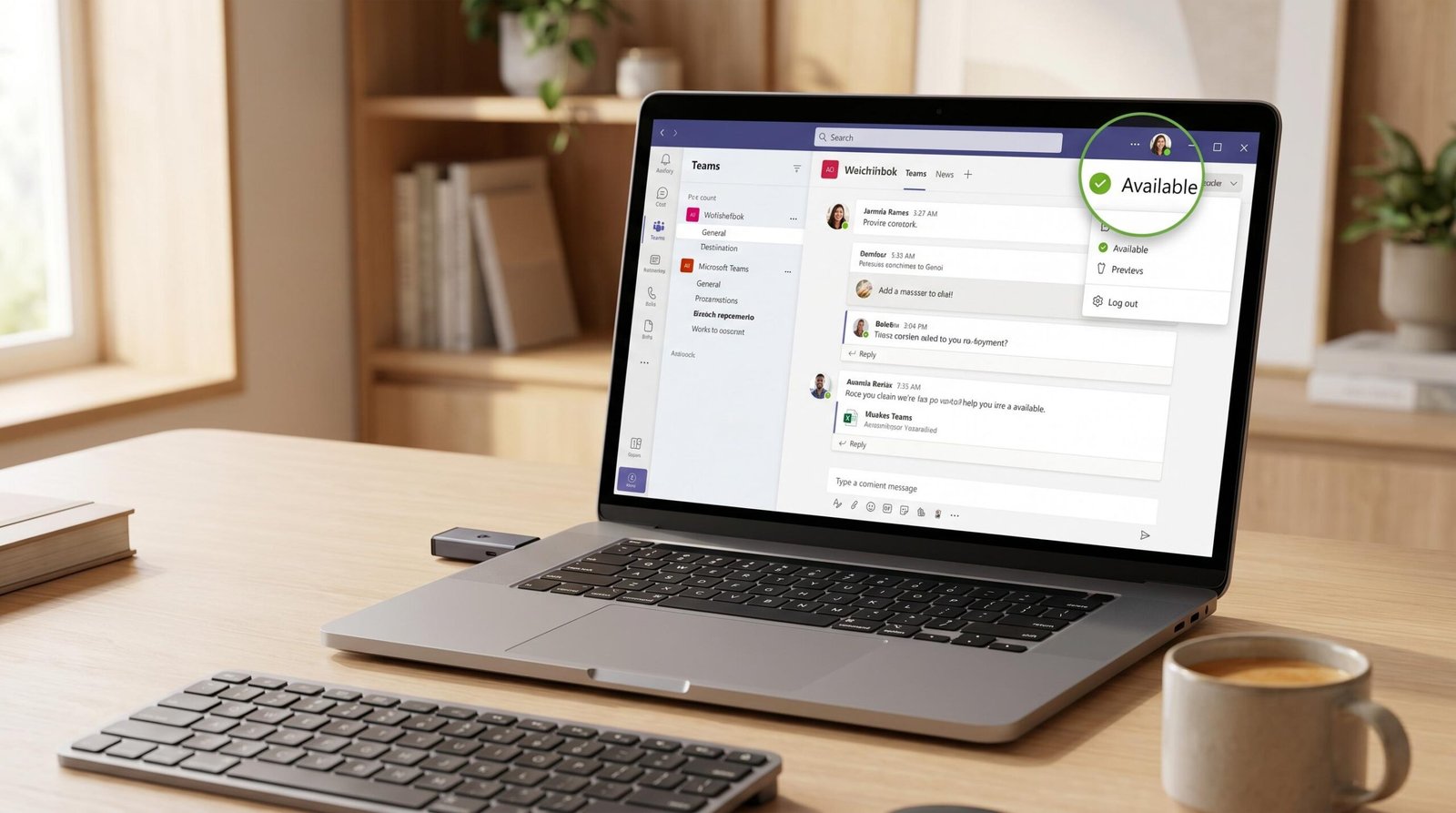
Yes, in most cases. Microsoft Teams and Slack determine your “available” status based on operating-system-level activity (mouse and keyboard input) and on whether the app window is in focus. A mouse jiggler keeps the OS-level activity counter ticking, which prevents the auto-away timer from triggering. Teams typically flips to “Away” after 5 minutes of inactivity, Slack at 10 minutes; both reset on any mouse movement. Note that if Teams is configured for status sync with calendar (in a meeting, out of office), the jiggler doesn’t override that.
How long do hardware mouse jigglers last?
Most USB hardware jigglers have no moving parts (the “movement” is electronic input, not physical motion of the device itself) and should last as long as any other USB peripheral, typically several years. Physical mouse movers with motors have shorter lifespans because the motor wears, expect 1-3 years of daily use depending on build quality. Battery-powered physical movers also depend on battery health. Both categories are cheap enough to replace that long-term durability isn’t a major buying criterion.
For more practical resources on managing multiple remote roles, see our guide to the best jobs for overemployment or browse the full library at Overemployed Toolkit.
RELATED POSTS
View all

Best Mouse Jiggler for Microsoft Teams in 2026 (Free Picks That Keep You Green)
May 22, 2026 | by Ian Adair
Best Mouse Jiggler Chrome Extension in 2026: Honest Picks That Actually Work
June 3, 2026 | by Ian Adair
Best Mouse Jiggler in 2026: Hardware, Software, and Undetectable Picks
December 22, 2023 | by overemployedtoolkit.com